START HERE
A shared market-structure workflow
Start with the GEX Heatmap to locate the concentration and sign of gamma exposure across nearby expirations. Then select the tool that fits your decision: a session summary, intraday change map, Gamma Map, cross-market comparison, or price chart.
Plus approximately 50 widely followed equity symbols. Coverage continues to expand.
CORE FEATURE
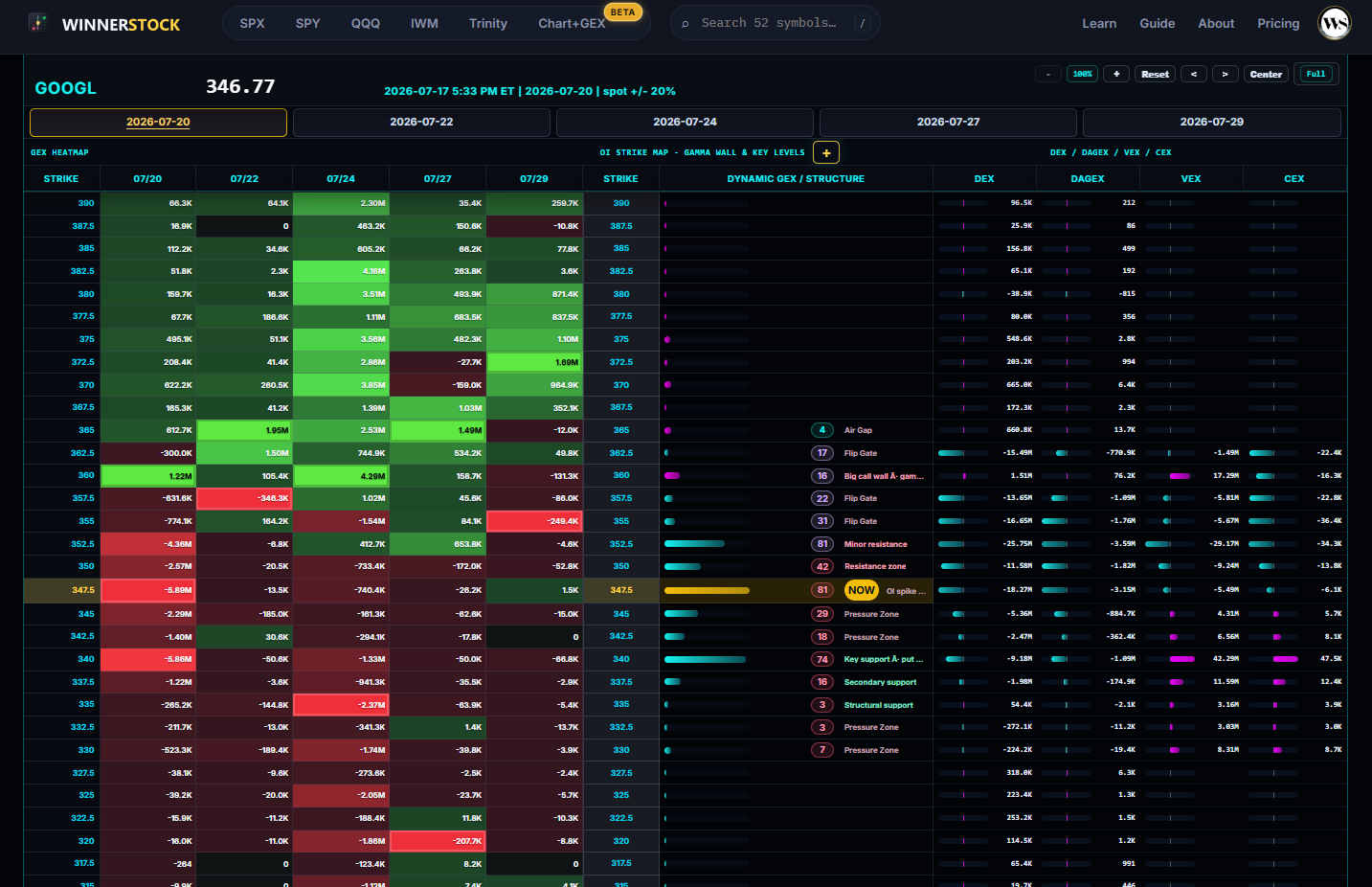
GEX Heatmap
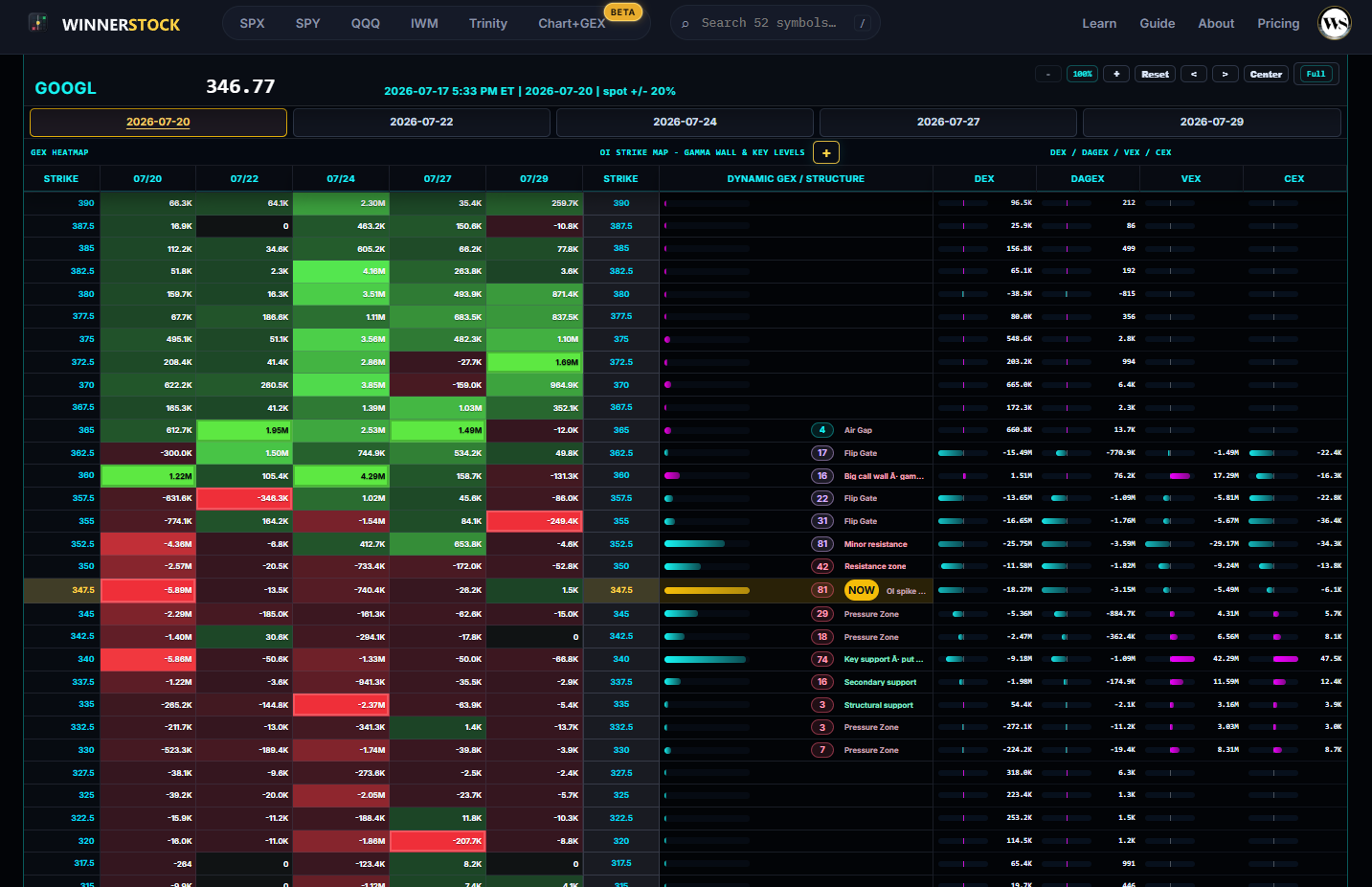
The GEX Heatmap displays positive and negative gamma exposure by strike across the selected symbol's five nearest expiration dates. During trading hours, the map refreshes as the structure changes.
- The horizontal axis shows nearby expiration dates and the vertical axis shows strikes. Each cell is the Net GEX for that expiration and strike.
- Green generally represents positive GEX and red generally represents negative GEX. More intense color means the cell's absolute GEX is more prominent within this view.
- Prioritize high-concentration strikes near current spot, because dealer-hedging activity may be more relevant when price approaches those areas.
- Selecting an expiration synchronizes the OI Strike Map, key levels, Session Map, and related modules to the same expiry, so structures from different expirations are not mixed together.
- Start with 0DTE and the nearest expiration to assess the day's most sensitive structure, then review later expirations to see whether broader structure supports or offsets the near-term view.
- Do not rely on color or a single largest reading alone. Compare the concentration with spot, check whether neighboring strikes form a dense zone, and confirm whether the structure is strengthening or weakening intraday.
Practical workflow: identify the strongest GEX areas nearest spot, then observe whether price is holding inside the zone, testing it, or moving decisively away from it. When adjacent strikes concentrate in the same direction, treat them as a structural area rather than an exact turning point.
SESSION INTELLIGENCE
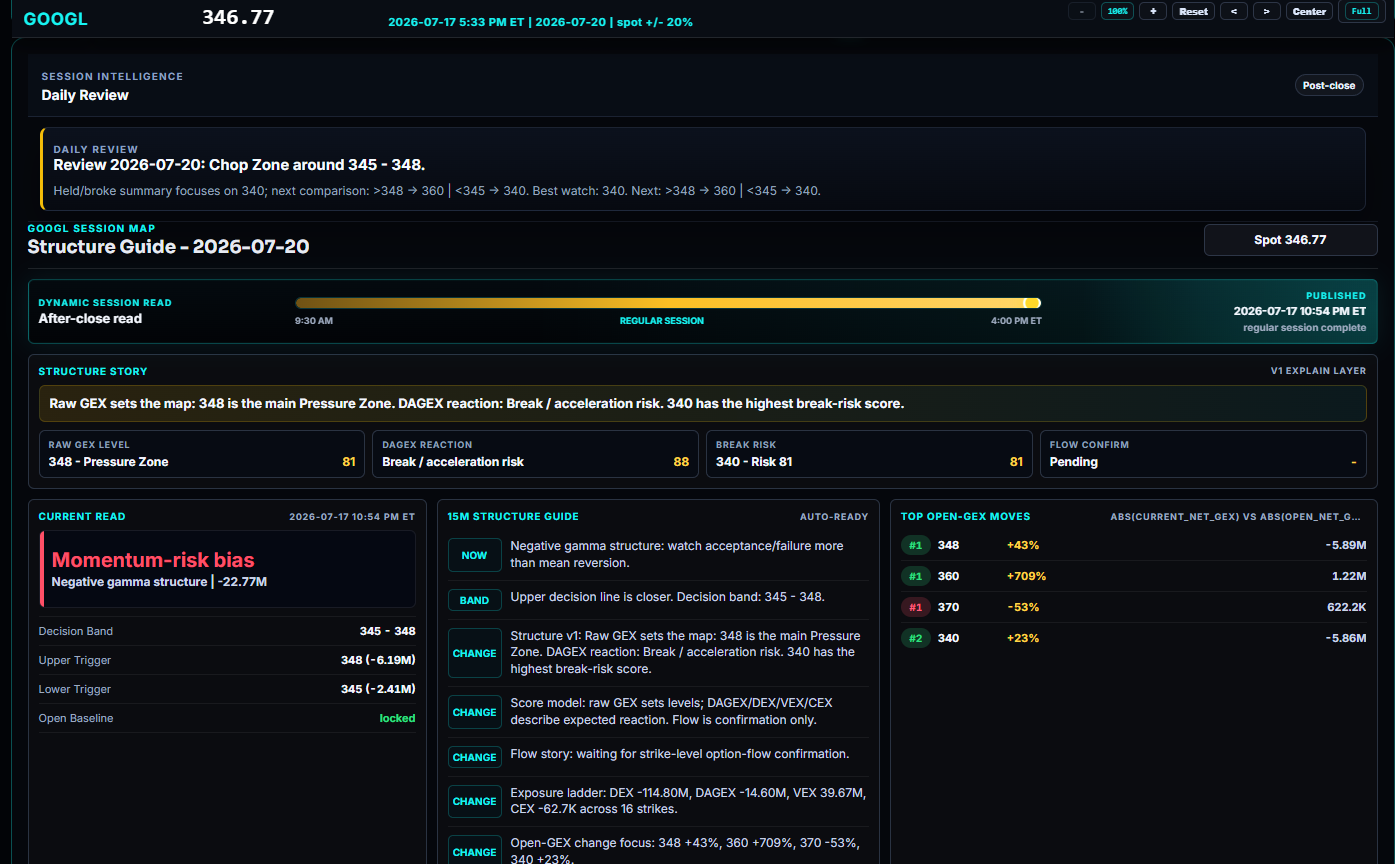
Daily Review
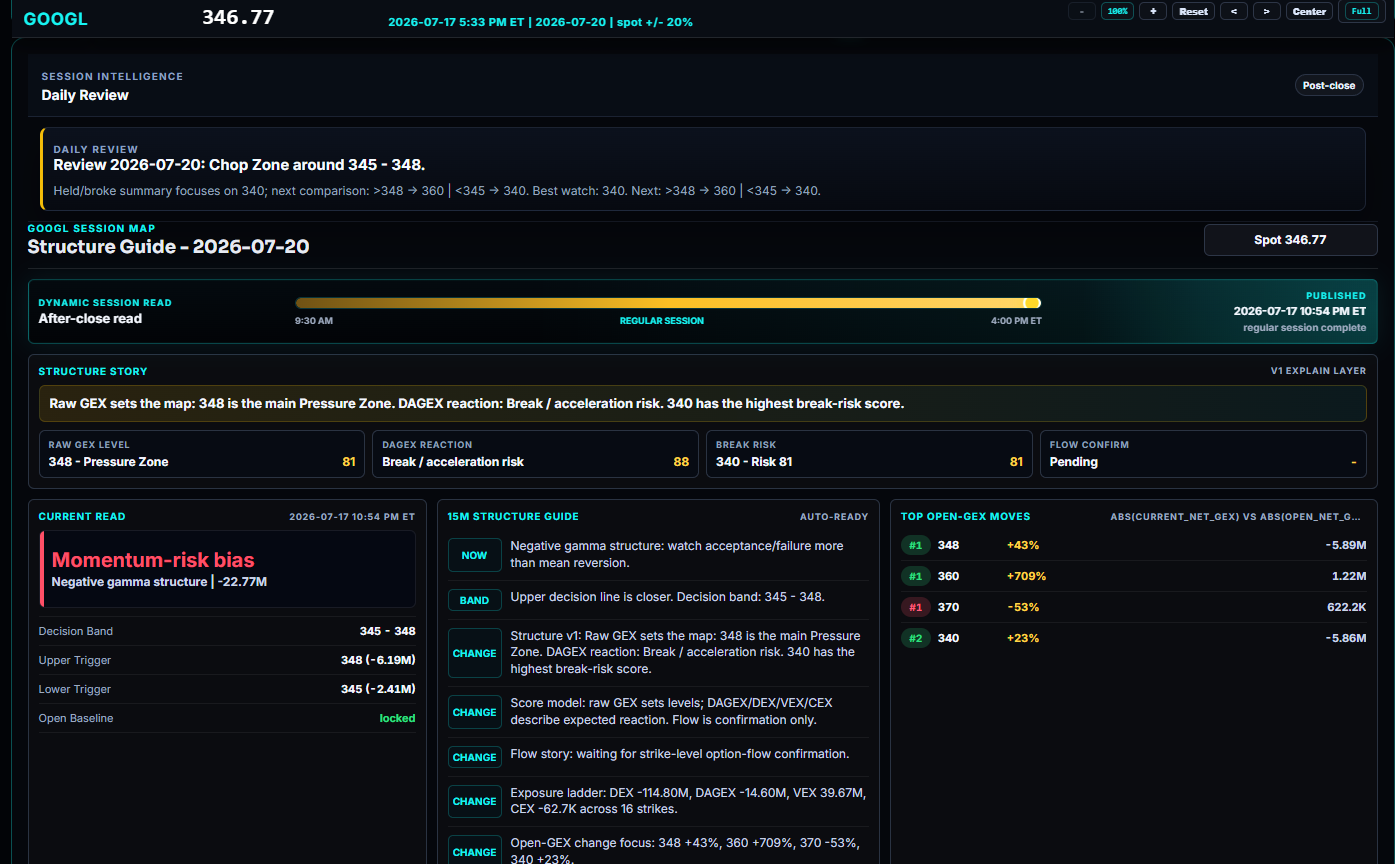
Daily Review summarizes the selected symbol's key market-structure conditions for the current session. It is built for a fast orientation before you inspect individual charts and levels.
- Begin with the current session state, Decision Band, Upper Trigger, Lower Trigger, and Open Baseline. These fields provide the quickest orientation before reviewing individual charts.
- Use the highlighted level reactions to identify whether price is holding, testing, or moving away from an important area. Treat levels as zones that require price confirmation, not as guaranteed support or resistance.
- Use the Structure Story and Current Read to decide which detailed module deserves attention next: the Heatmap for concentration, the Strike Pressure Matrix for intraday change, or Premium Flow for classified order-flow context.
- After the close, compare the session's planned areas with the actual reaction. This turns the panel into a review tool for separating levels that held, broke, or were not meaningfully tested.
Important: Daily Review is an organized market-structure orientation and post-session review tool. It is not a trading recommendation or a forecast.
WORKFLOW TOOL
AI Context Export
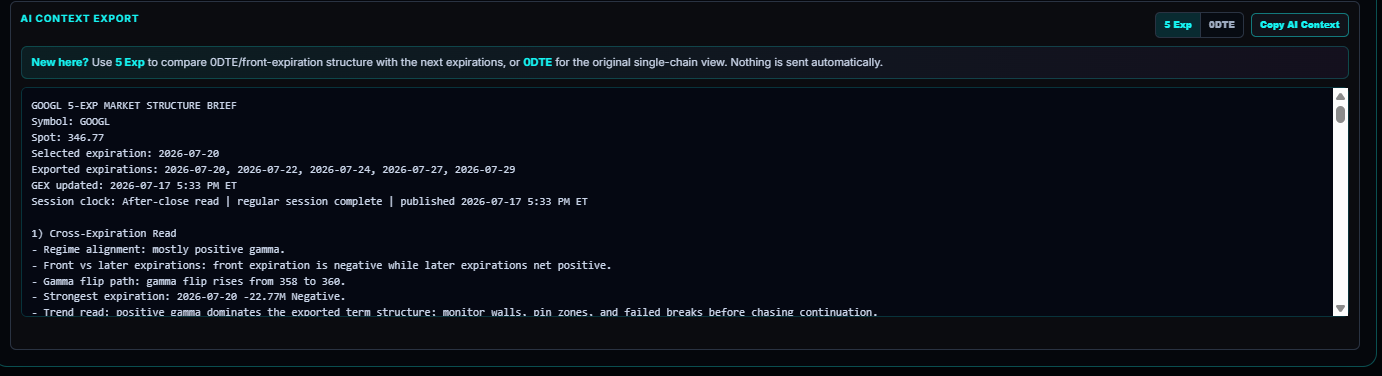
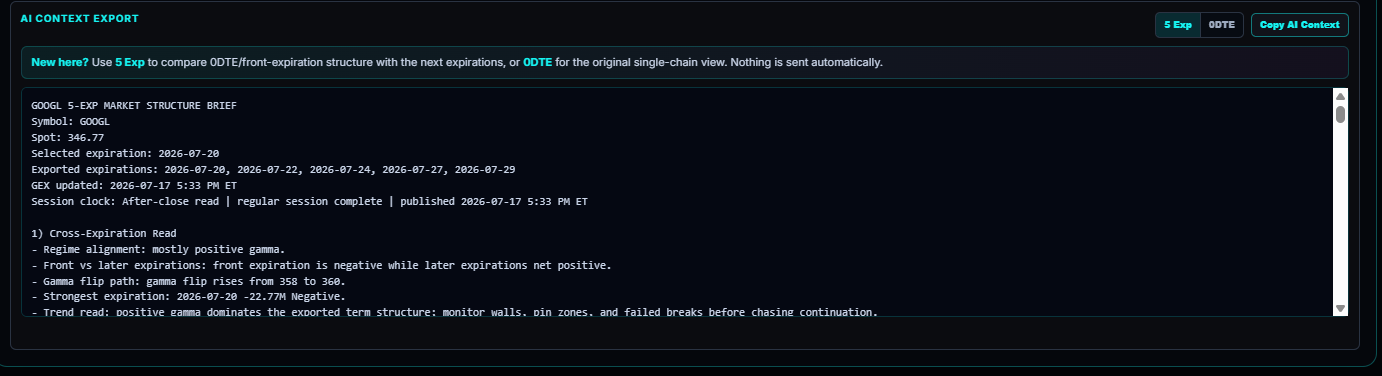
AI Context Export turns WINNERSTOCK market-structure data into clean, AI-readable text. Copy the selected symbol and expiration context, then paste it into ChatGPT, Claude, or another compatible assistant for the analysis you choose.
- Use 5 Exp when you want to compare 0DTE/front-expiration structure with the next nearby expirations. Use 0DTE when you need a focused single-chain view of the selected expiration.
- Before copying, confirm the visible symbol, spot price, expiration, and published time. The export is a time-stamped snapshot, so its usefulness declines if fast market conditions have already changed.
- Click Copy AI Context, then paste the text into your preferred AI assistant. Nothing is sent automatically from WINNERSTOCK.
- Ask a narrow research question, such as comparing expiration structures, identifying levels and conditions to monitor, or summarizing conflicting evidence. Verify any response against the original charts and current timestamp.
Important: AI output is research assistance, not investment advice. The exported context reflects the selected view and does not replace independent market, liquidity, and risk analysis.
INTRADAY GEX MOVERS
Strike Pressure Matrix
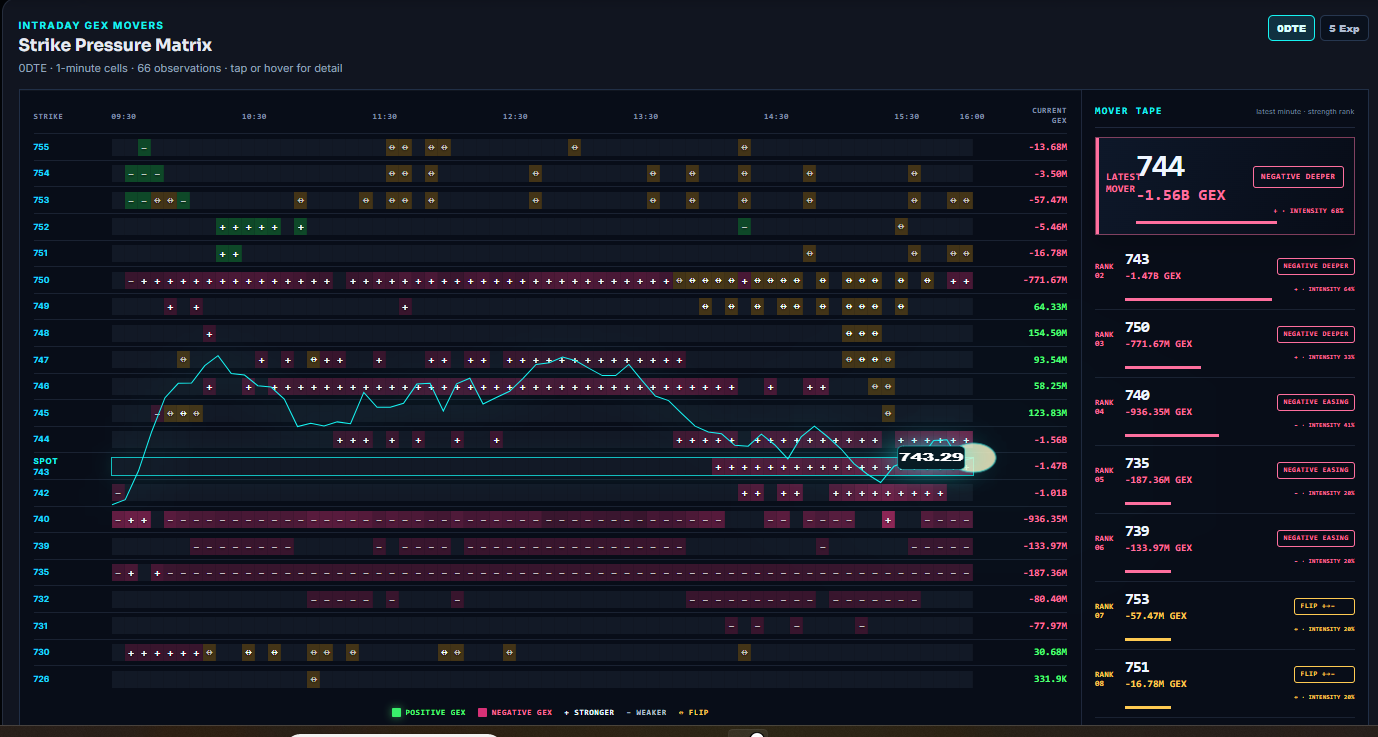
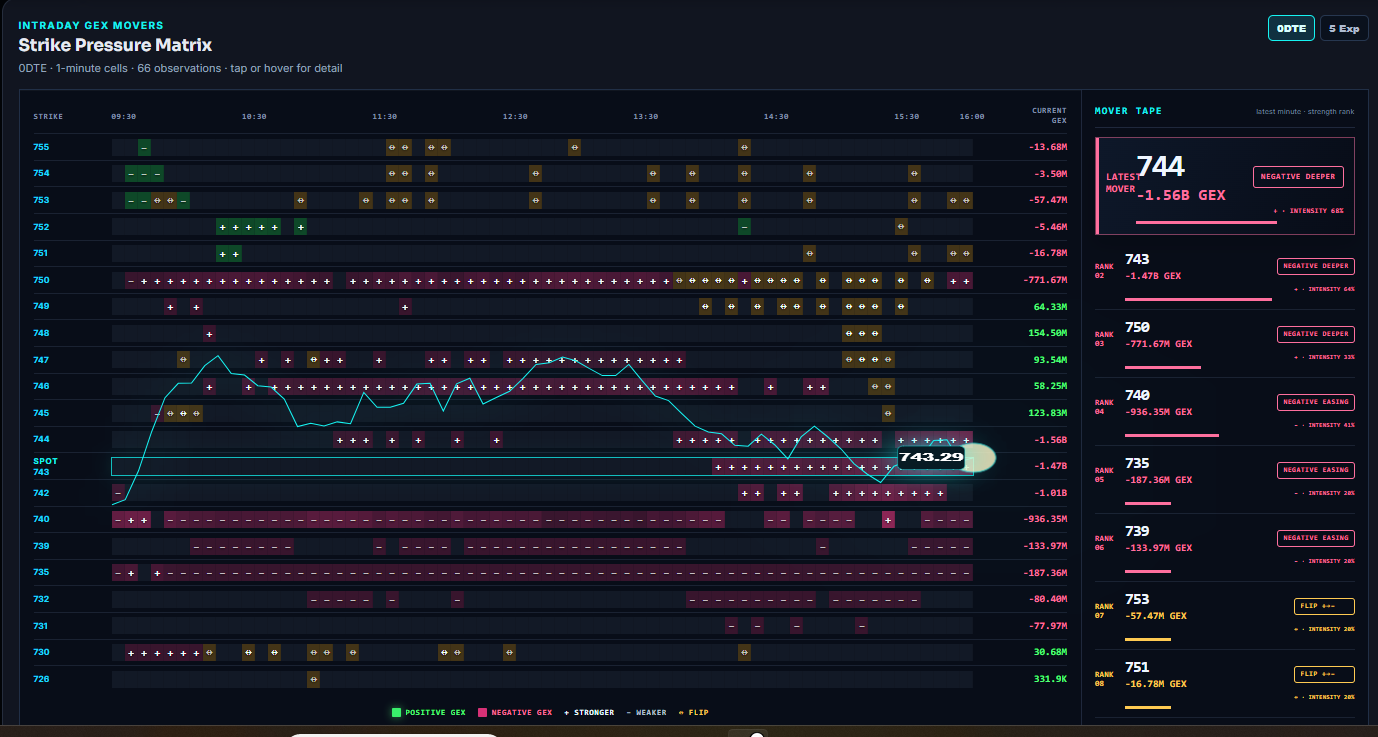
The Strike Pressure Matrix tracks how positive and negative 0DTE GEX changes by strike throughout the session, measured against that strike's opening GEX level.
- The vertical axis is strike and the horizontal axis is intraday time. Each cell shows the strike's GEX condition relative to its opening-session GEX baseline.
- Stronger means the existing sign is increasing in magnitude: positive GEX is becoming more positive, or negative GEX is becoming more negative. Weaker means the reading is moving toward zero.
- Flip means GEX has crossed zero and changed sign. It merits a fresh review, but it is not an automatic reversal signal.
- Use 0DTE for the day's most sensitive expiration and 5 Exp for the combined nearby-expiration structure.
- MOVER TAPE ranks the latest changes by strength. Begin with strikes near spot and look for persistence across several observations instead of reacting to a single update.
Important: the matrix measures change from the opening GEX baseline. It is not a volume chart, a premium chart, or a record of actual dealer positions.
INTRADAY GEX MOVERS
Spot + Gamma
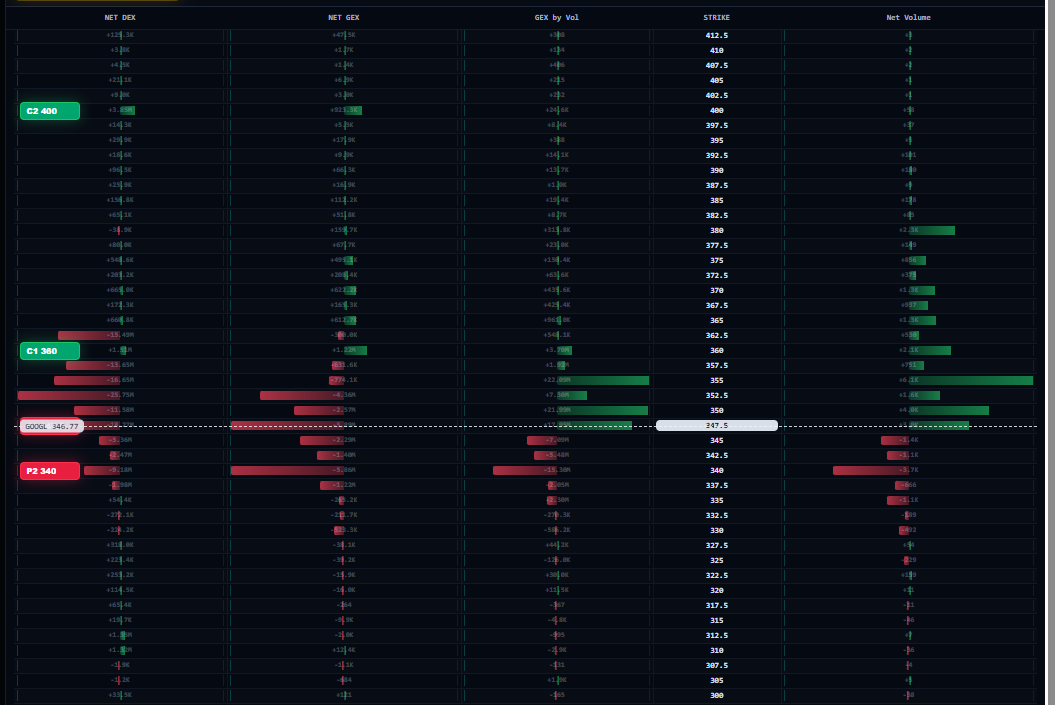
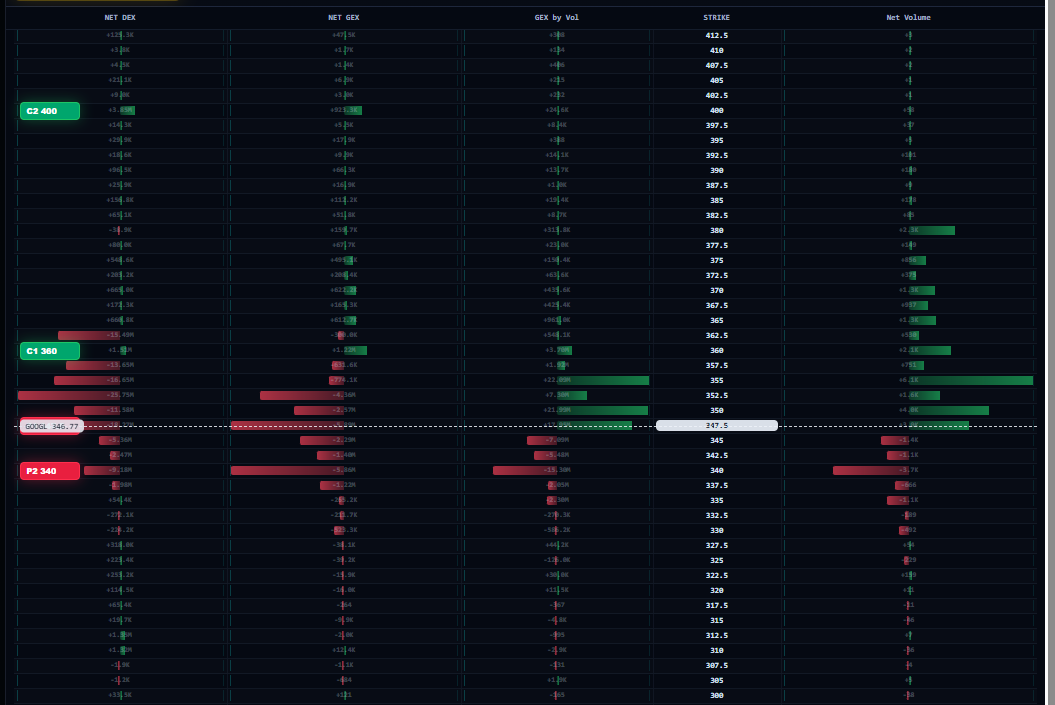
Spot + Gamma opens a table and chart view of the selected symbol's Gamma Map. It brings expiration summaries together with strike-level NET DEX, NET GEX, GEX by Vol, and NET Volume distributions.
- Start with the expiration summaries. Comparing NET DEX across available expirations helps distinguish a broad multi-expiration condition from a move concentrated in one near-term chain.
- Then read the strike-level Gamma Map around the dashed spot line. Inspect NET DEX, NET GEX, GEX by Vol, and Net Volume above, below, and closest to current price.
- Use the map to compare concentration on each side of spot rather than treating one metric in isolation. A strike can be notable for delta, gamma, or volume for different reasons.
- A concentration becomes more relevant when price is approaching it and the Heatmap or intraday movers show compatible structure. Use these measures as context, not as standalone entries or exits.
Practical workflow: compare expiration summaries first, focus the strike map around spot second, and use price action plus the other WINNERSTOCK structure views to confirm whether a level is becoming relevant.

CROSS-MARKET VIEW
Trinity Chart
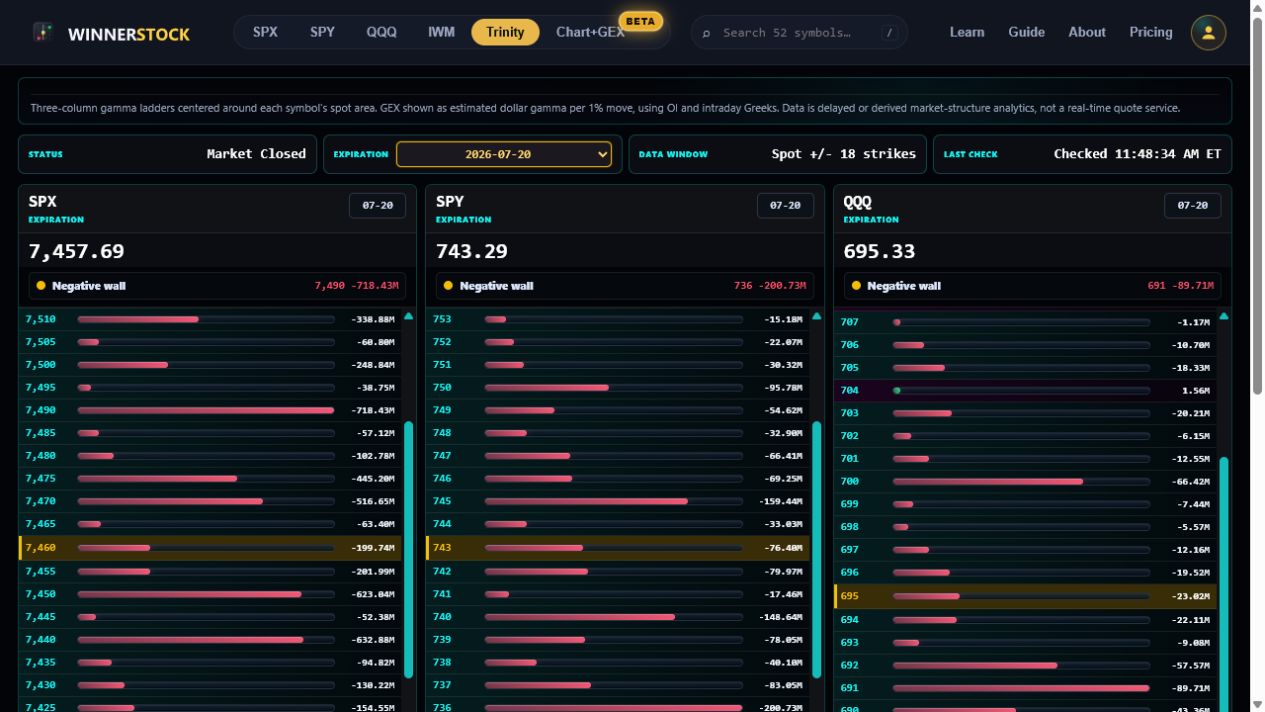
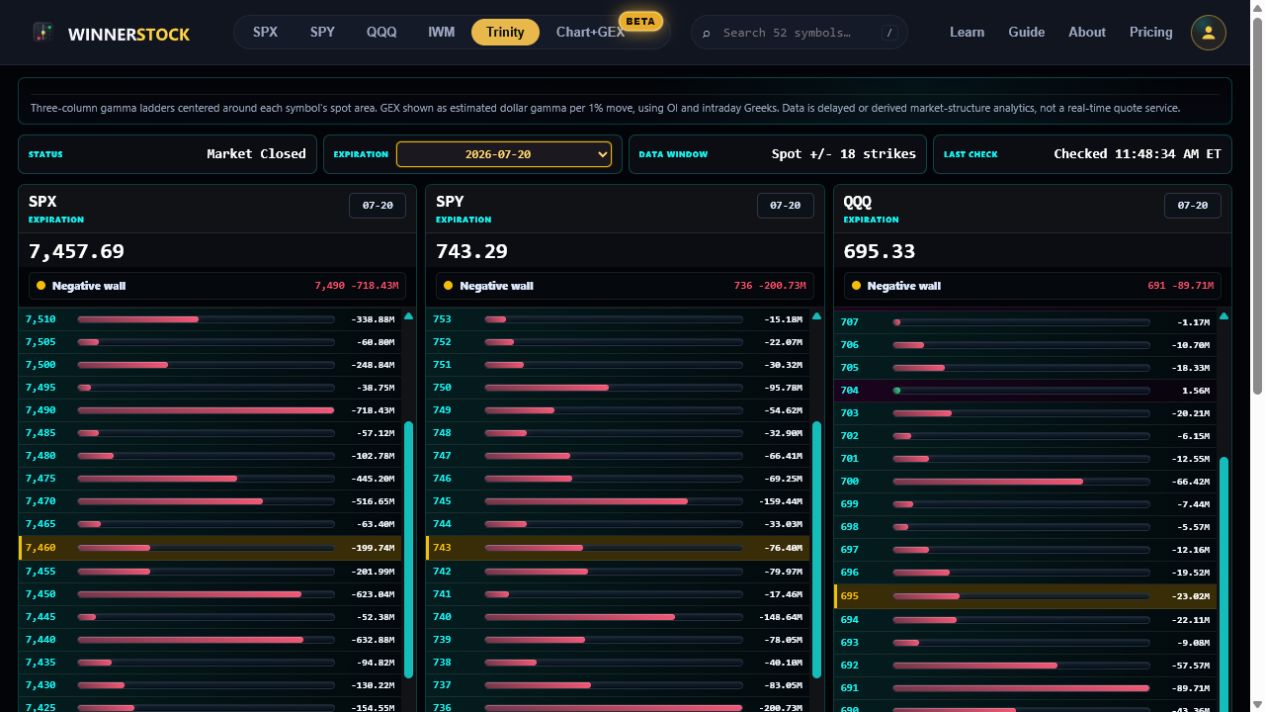
Trinity keeps SPX, SPY, and QQQ gamma levels in one coordinated view. Compare the current session or a selected expiration to see whether the three markets confirm or diverge.
- Set the same expiration across SPX, SPY, and QQQ before comparing levels. This keeps the view focused on comparable time horizons instead of mixing different expiration structures.
- Compare each market's nearby gamma levels relative to its own spot price. Look for broad confirmation when multiple markets are approaching similarly important structural areas.
- Use divergence as information: an apparent move may be concentrated in one product when the other markets do not show comparable structure or price behavior.
- SPX, SPY, and QQQ do not have identical pricing, constituents, contract sizes, or option structures. Compare relationships and relative behavior rather than expecting exact level matches.
Practical workflow: begin with the shared expiration, compare the nearest levels around each market's spot, then use the Heatmap and price action to determine whether the apparent confirmation or divergence persists.
PRICE + EXPOSURE
Chart + GEX
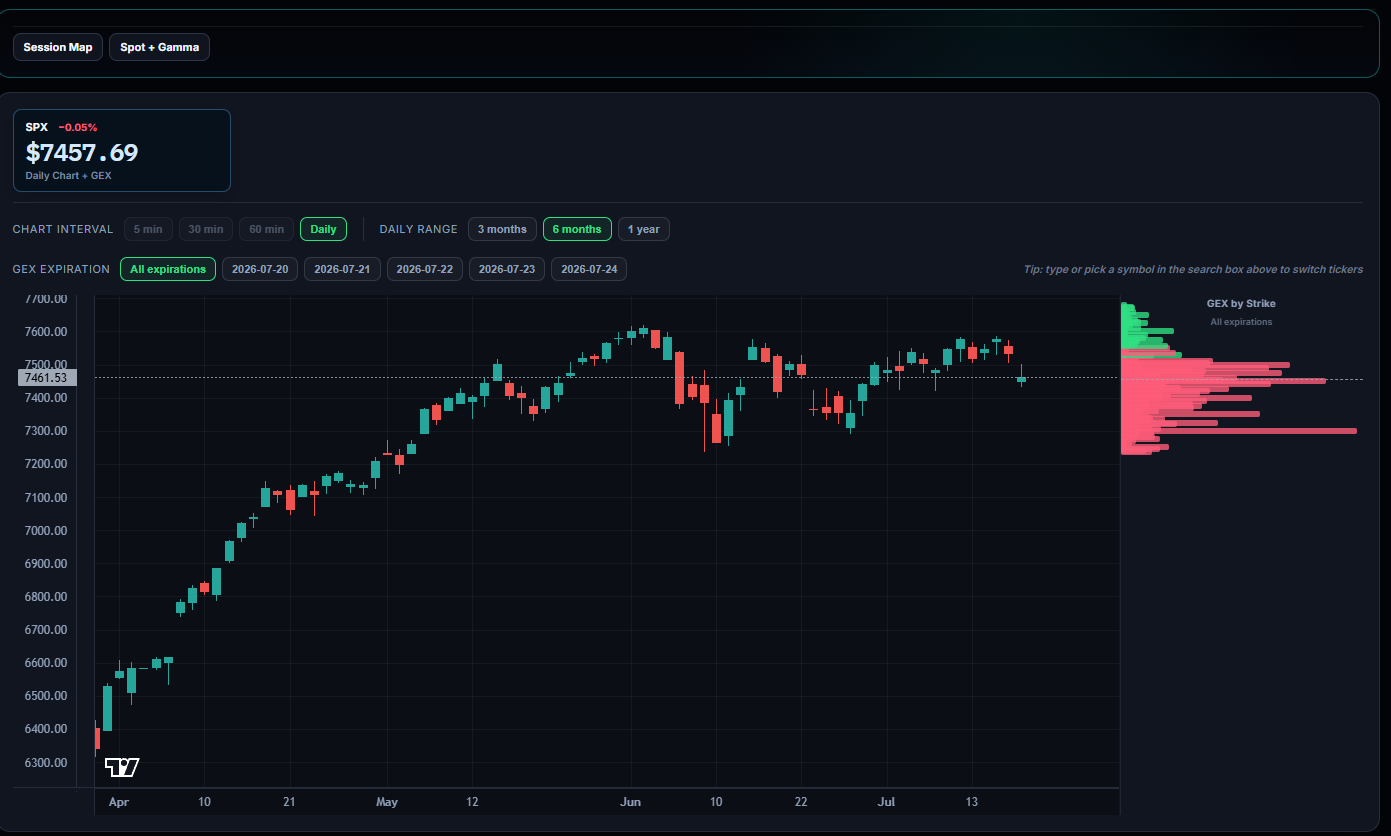
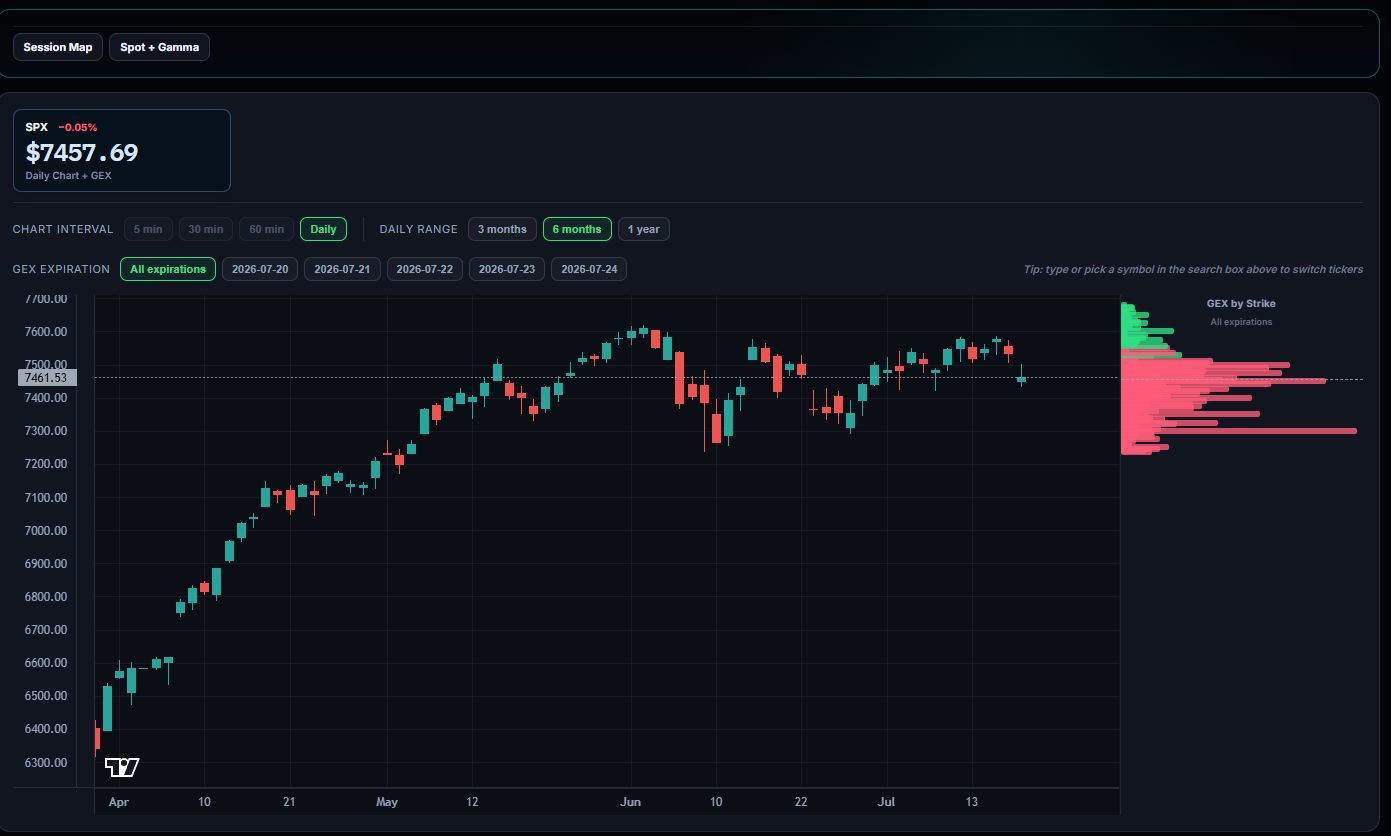
Chart + GEX pairs candlestick price action with GEX-by-strike distributions. Choose a 5-minute, 30-minute, 60-minute, or daily interval, then review cumulative GEX across five expirations or isolate a single expiration.
- Choose 5-minute, 30-minute, or 60-minute candles for intraday structure. Use Daily with a 3-month, 6-month, or 1-year range for broader price context.
- The candlestick chart and GEX-by-strike distribution share the same price axis, so you can directly see whether spot is approaching, holding inside, or moving away from a concentrated GEX area.
- Start with the combined five-expiration view to identify broad structure, then isolate a single expiration to test whether the visible concentration is broad or driven by one chain.
- The +GEX Top 2 and -GEX Top 2 panels identify the most prominent readings in the selected scope. The N/P GEX Ratio is a structural overview and should not be interpreted without absolute size and price context.
- IV vs HV provides volatility context; it is not a directional forecast.
Practical workflow: match the candle interval to your trading horizon, identify the broad GEX structure, then use the nearest expiration to examine short-term sensitivity. Confirm any level with price acceptance and flow rather than treating GEX as a standalone signal.
ORDER-FLOW INTELLIGENCE
Premium Flow
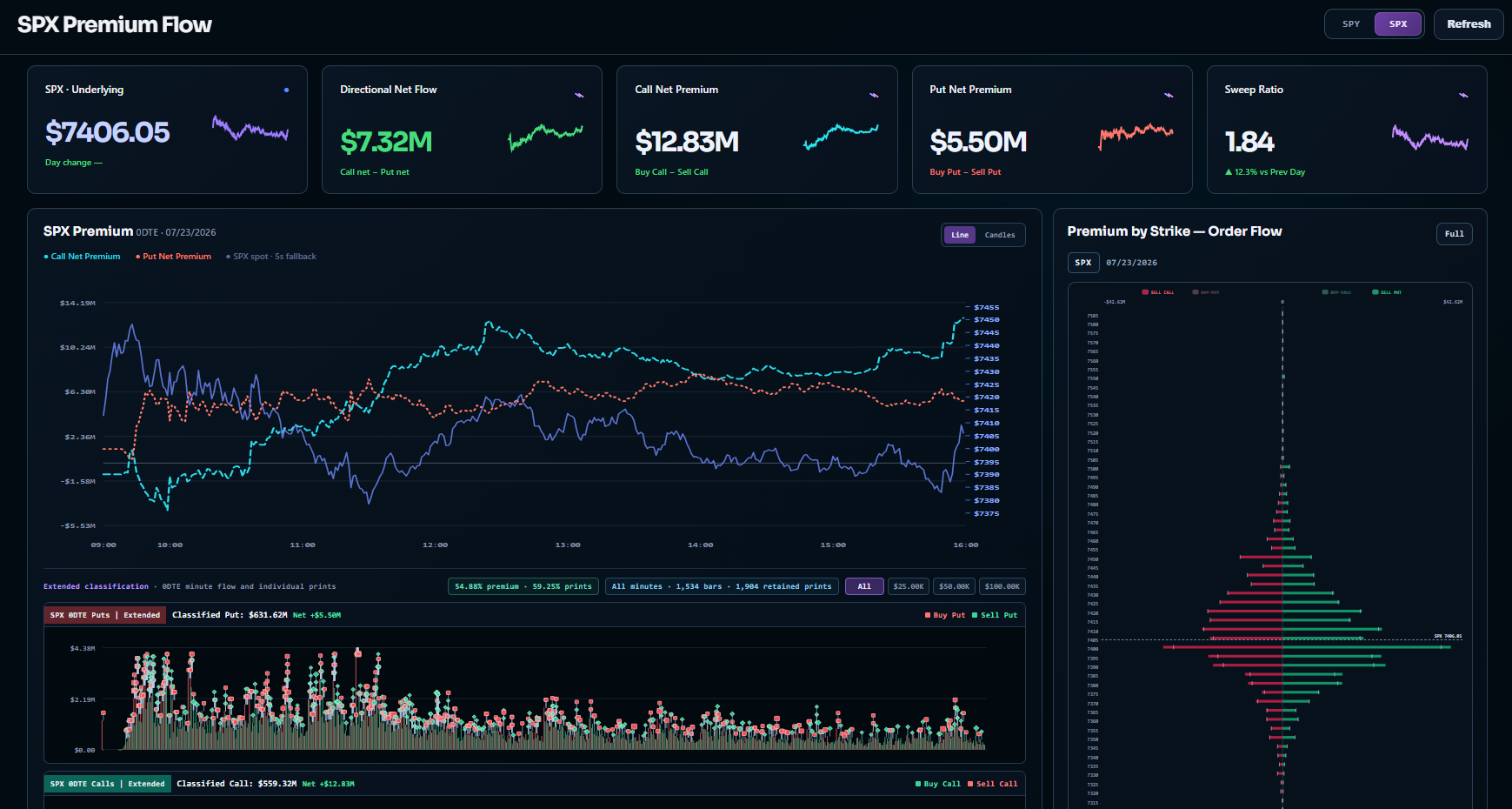
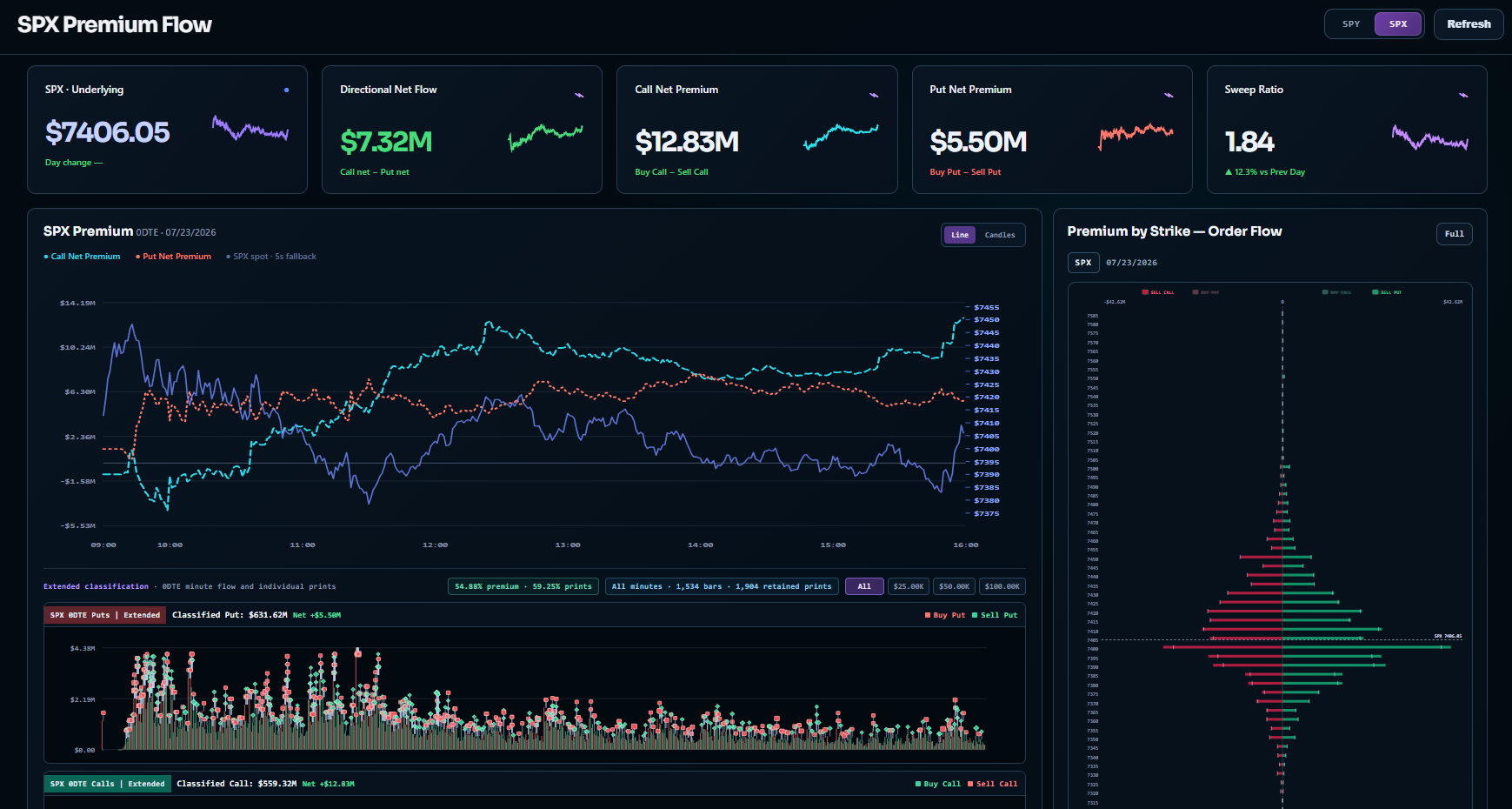
Premium Flow is an intraday view designed to show how options premium is moving through the market. It brings directional net flow, call and put net premium, sweep activity, classified prints, and premium-by-strike into one coordinated workspace.
- Call Net Premium = Buy Call − Sell Call; Put Net Premium = Buy Put − Sell Put; and Directional Net Flow = Call Net Premium − Put Net Premium.
- Use Absolute $ to compare real cumulative premium scale. Use Relative to compare the pace and turning points of each series; series heights in Relative mode do not represent comparable dollar amounts.
- Compare the premium path with SPX price. A divergence can be worth investigating, but a large print may be a hedge, roll, spread, or multi-leg strategy rather than a directional position.
- The left side aggregates Sell Call plus Buy Put; the right side aggregates Buy Call plus Sell Put. Hover a strike to inspect classified premium, contracts, gross premium, and net value.
- Prioritize clusters near spot or a nearby decision area, not simply the largest distant bar. Unknown-direction prints are excluded from this classified view.
- The model maps customer Buy Call and Sell Put to inferred dealer short flow, and customer Sell Call and Buy Put to inferred dealer long flow.
- It estimates same-day contract flow by strike; it is not an actual dealer position. Prior-close Call and Put OI are background context on a separate scale and must not be compared by bar length with the flow bars.
Practical workflow: give the most weight to agreement across time, strike, and structure: a persistent premium change, a nearby premium cluster, and a compatible GEX condition. Always account for incomplete classification and multi-leg activity.
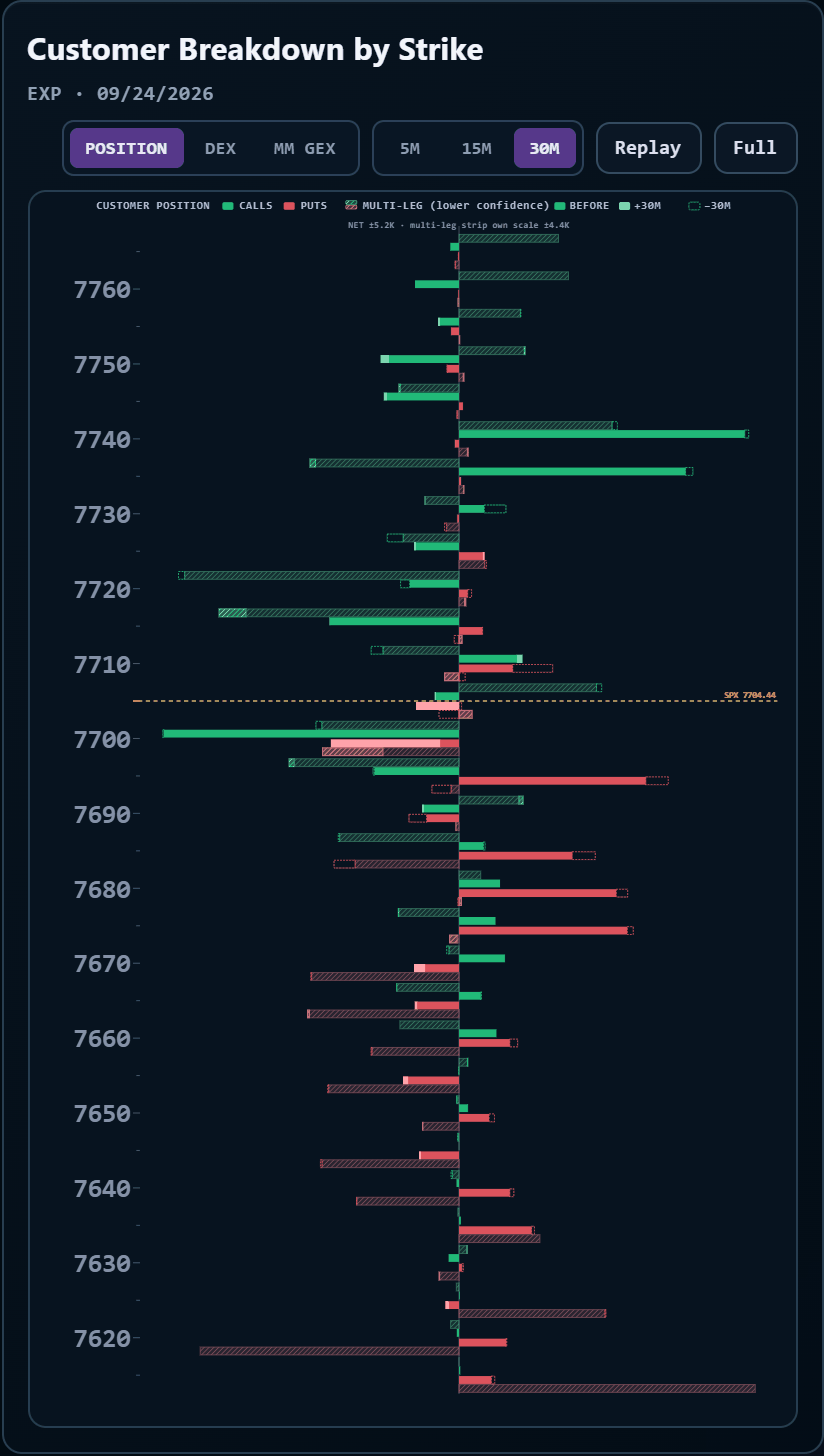
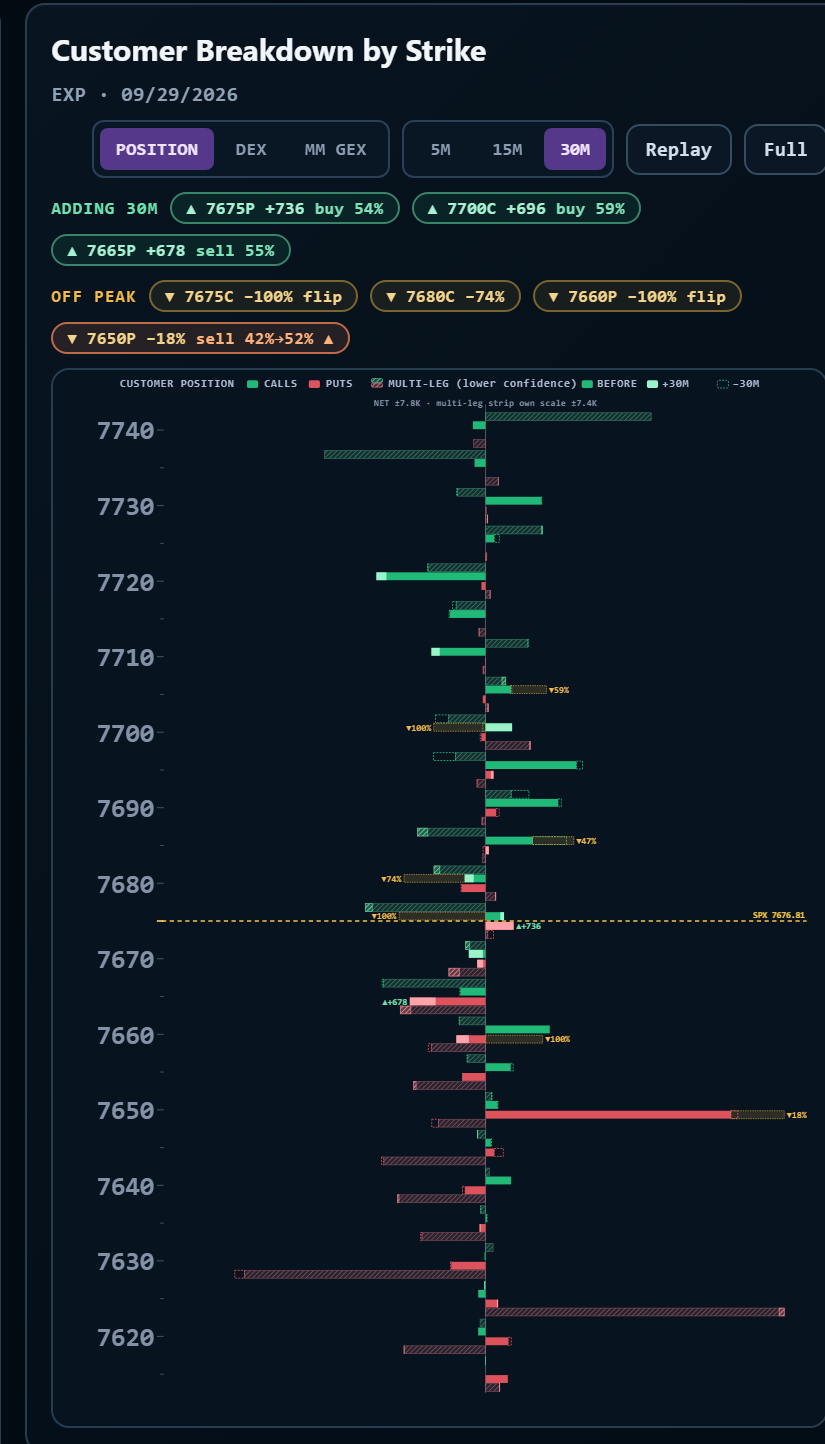
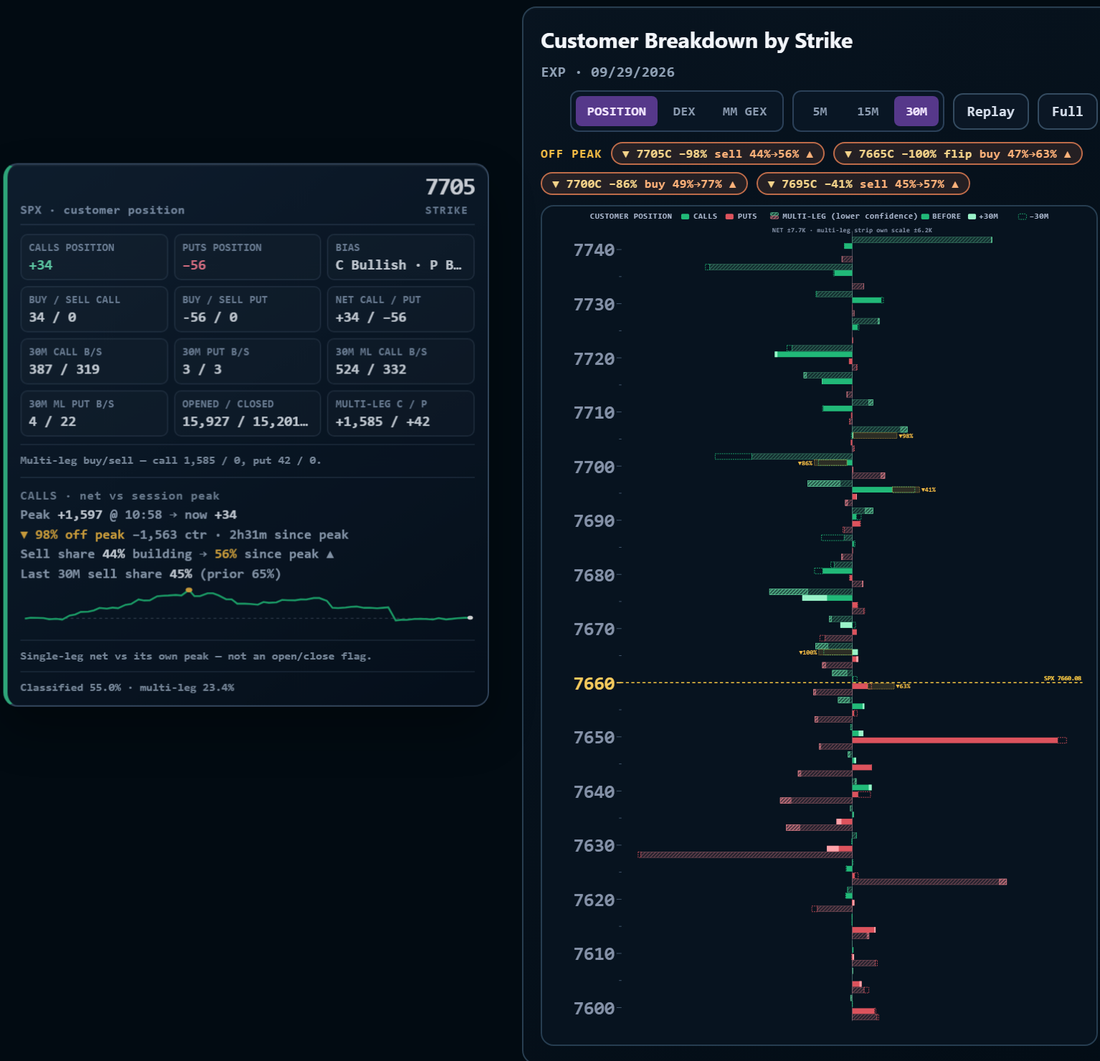
The Customer Breakdown by Strike chart shows the net position that customers (all non-market-maker traders) have built in each SPX 0DTE strike today.
- Net position = contracts bought − contracts sold, counted from the 09:30 ET open. Positions opened before today are not included.
- Market makers usually take the other side. Where customers are net long, dealers are usually net short, and the reverse.
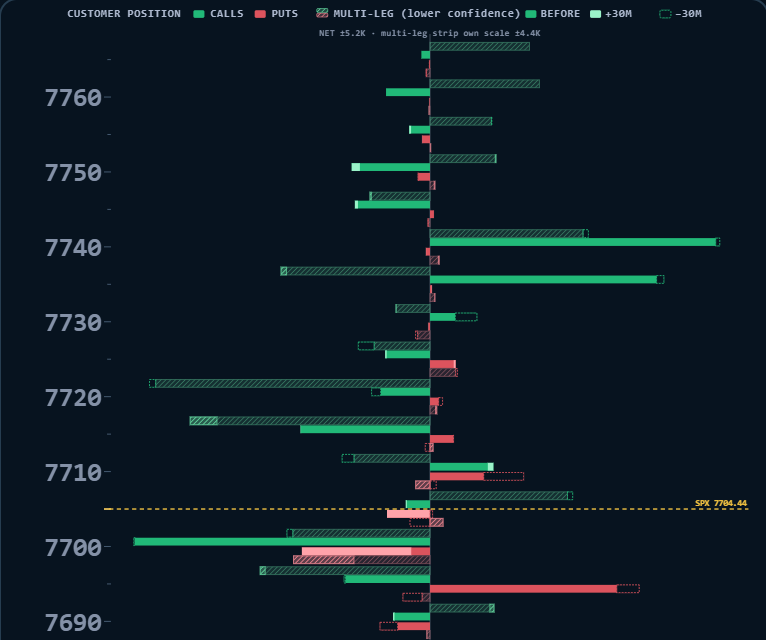
- The vertical axis lists strikes in 5-point steps. Labels mark every 10 points; hover any row to see its strike. The dashed yellow line is the current SPX price.
- A bar to the right means customers are net long. A bar to the left means customers are net short.
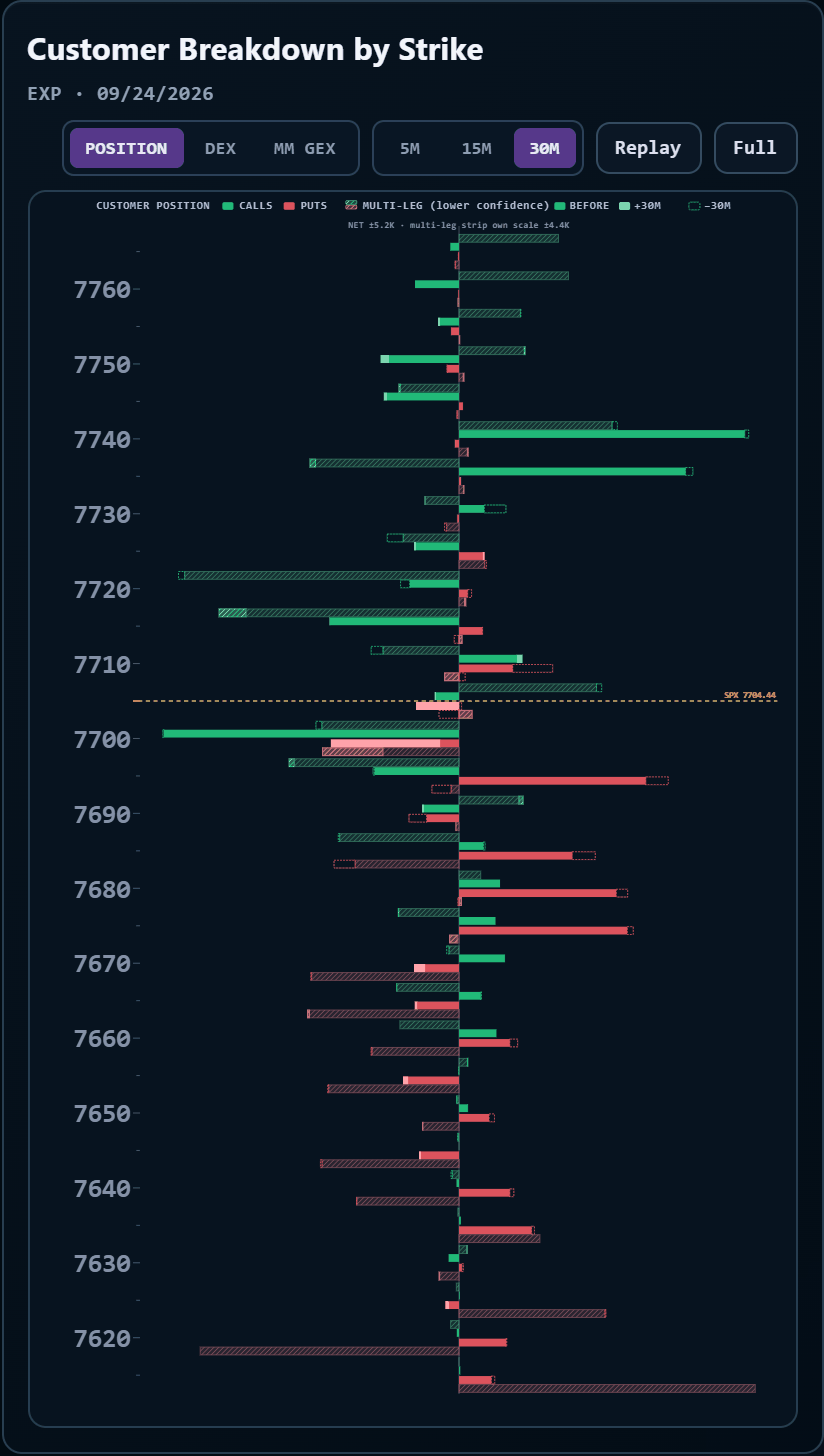
Each strike has up to four bars, from top to bottom:
- Hatched green — multi-leg calls: call legs of spreads and other combination orders.
- Solid green — single-leg calls.
- Solid red — single-leg puts.
- Hatched red — multi-leg puts.
Single-leg bars come from options traded on their own; their direction is the most reliable. Multi-leg bars come from legs of spreads; their direction is inferred from the price of the whole package, so treat them as lower confidence.
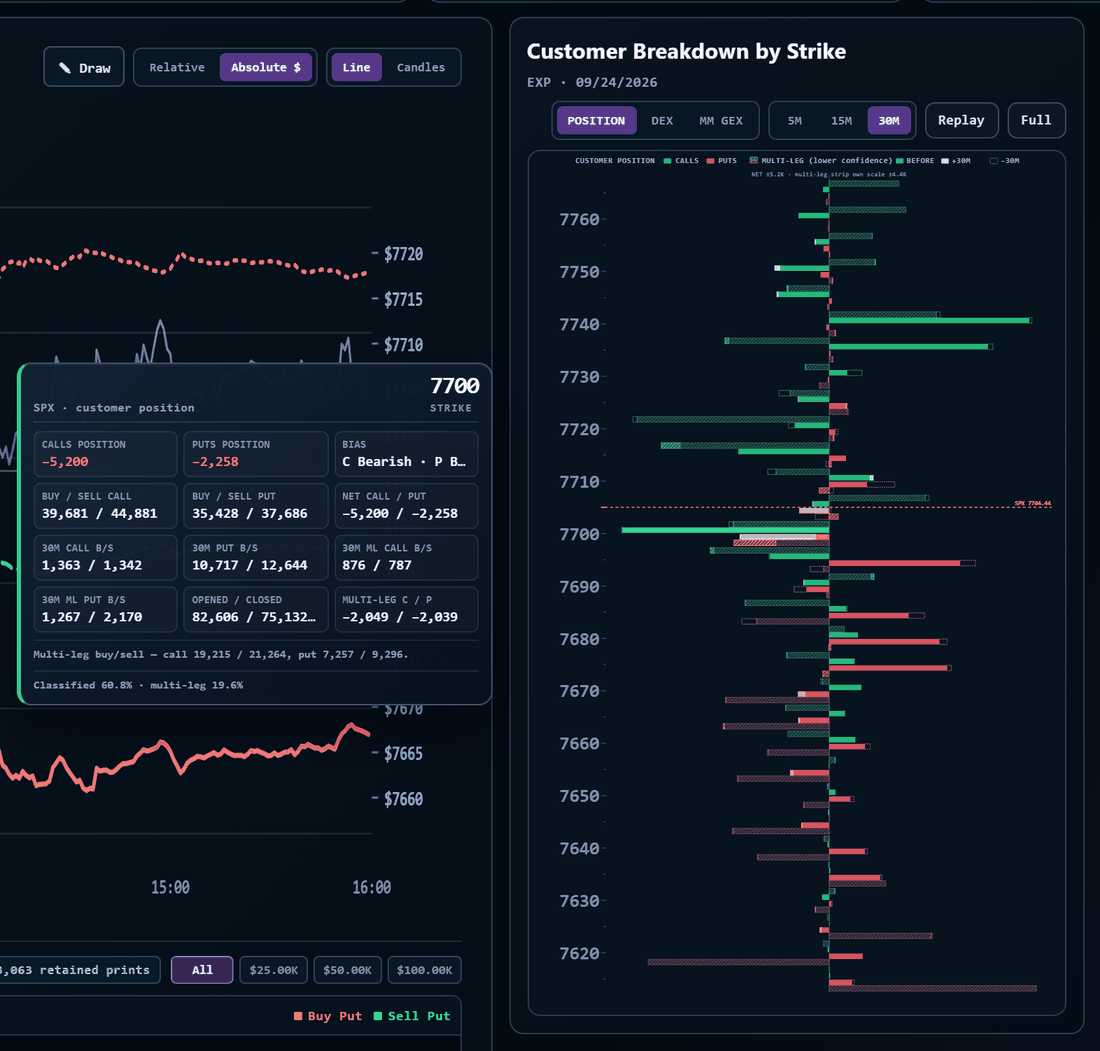
The two bar types use different scales. The header shows both, for example NET ±5.2K for single-leg bars and multi-leg ±4.4K for multi-leg bars. Compare bars of the same type only.
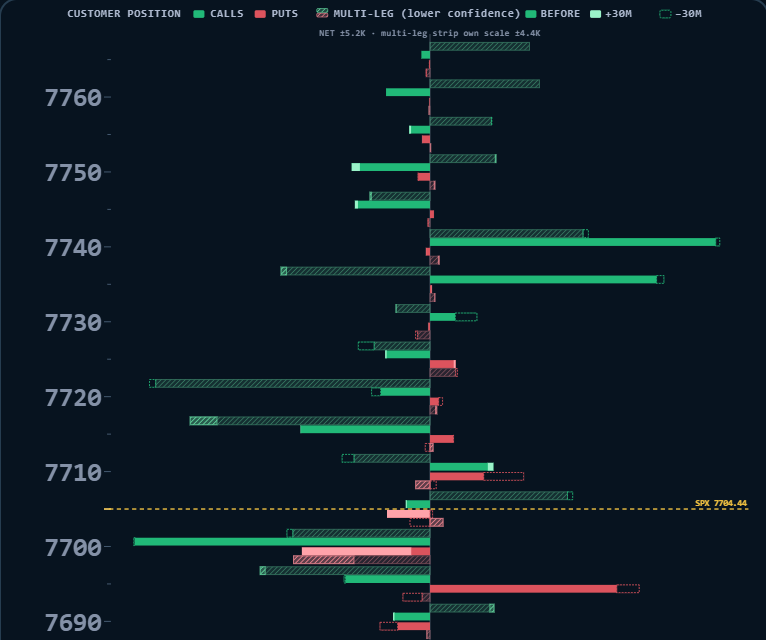
Select a window to see how positions changed recently. Each bar is split:
- Normal color — position held before the window started.
- Lighter color — position added during the window.
- Dashed outline — position reduced during the window.
Example: with 30M selected, a light extension on a large bar means customers kept adding at that strike in the last 30 minutes. A bar that shrinks quickly suggests customers are reducing the position, and the earlier view may have changed.
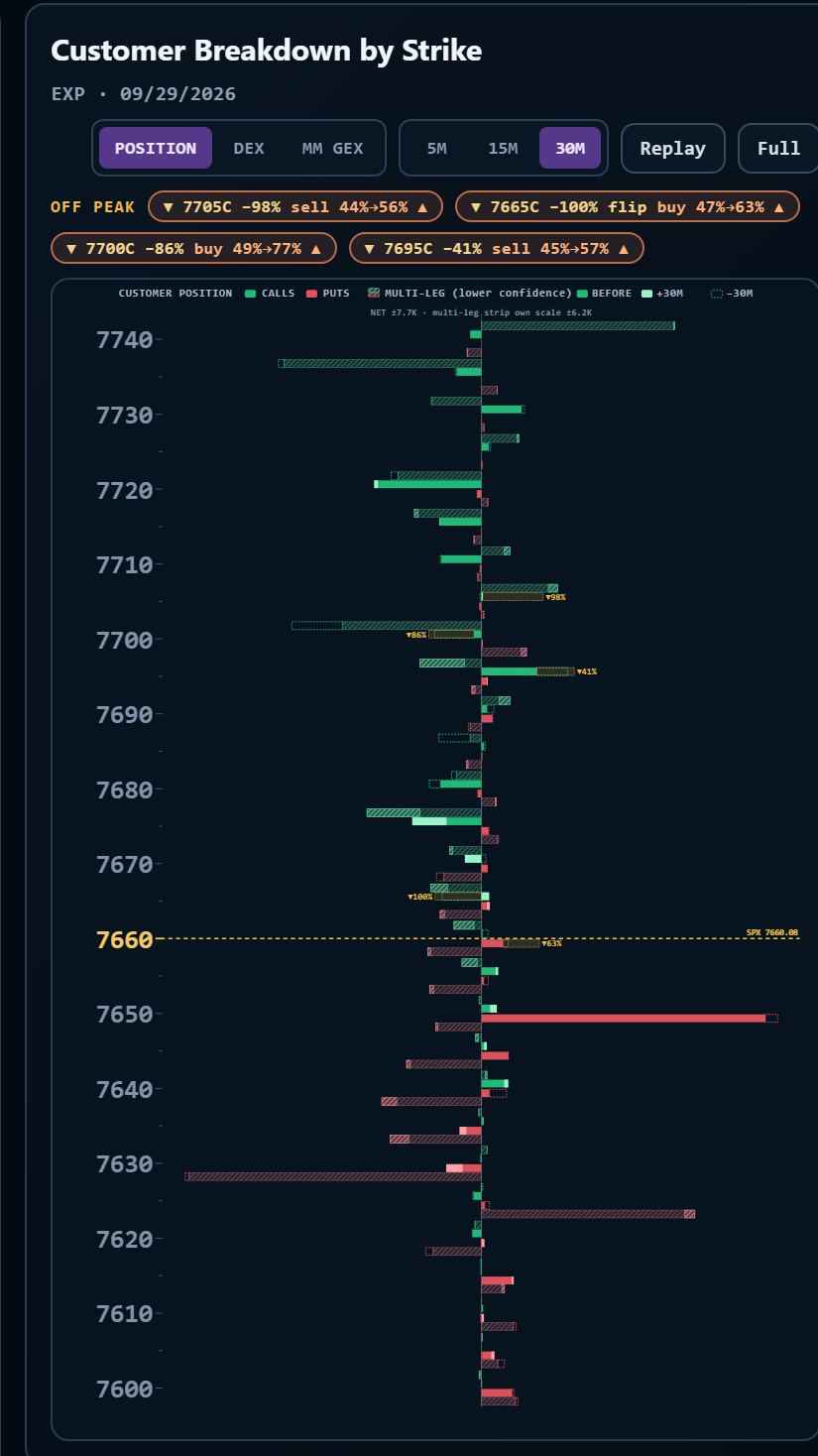
The chart marks strikes where customers have reduced a large position. Three terms help you read it:
- Net position — contracts bought minus contracts sold.
- Peak — the time today when the net position at a strike was farthest from zero.
- Given back — the net position has moved from its peak toward zero.
The chips are the small labels above the chart. They name the strikes that gave back the most contracts. The chart shows up to four chips. Each chip shows the strike, the side (C for calls, P for puts), and the percentage given back.
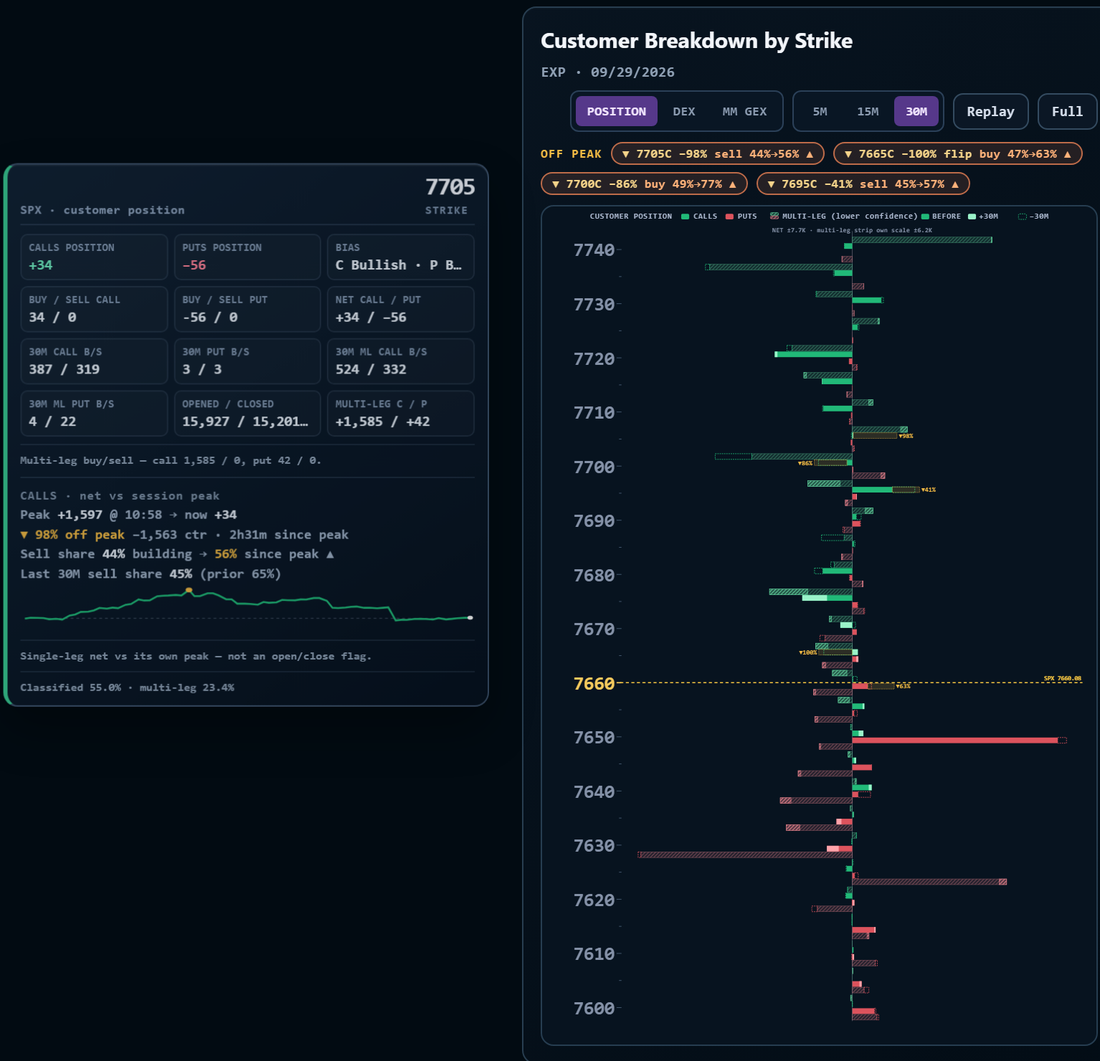
- ▼ 7705C −98% sell 44%→56% ▲ — The net position at the 7705 call strike is 98% below its peak. Almost all of it is given back. Sells were 44% of the volume while the position grew. Sells are 56% of the volume since the peak. The ▲ means that the share rose: more customers are selling.
- ▼ 7700C −86% buy 49%→77% ▲ — Here the peak was a net short position. Customers reduce a net short position by buying. For this reason, the chip shows the buy share instead of the sell share.
- ▼ 7665C −100% flip buy 47%→63% ▲ — Flip means that the net position returned to zero and then moved to the opposite side.
- ▼ 7695C −41% sell 45%→57% ▲ — A smaller give-back. About 59% of the peak position remains.
A dashed amber outline extends a solid bar from its current end to its peak. The label, for example ▼98%, shows the percentage given back. A longer outline means that more was given back. This outline is not the thin dashed outline of the 5M / 15M / 30M view. That outline shows the change in the selected window. The amber outline shows the change since the peak.
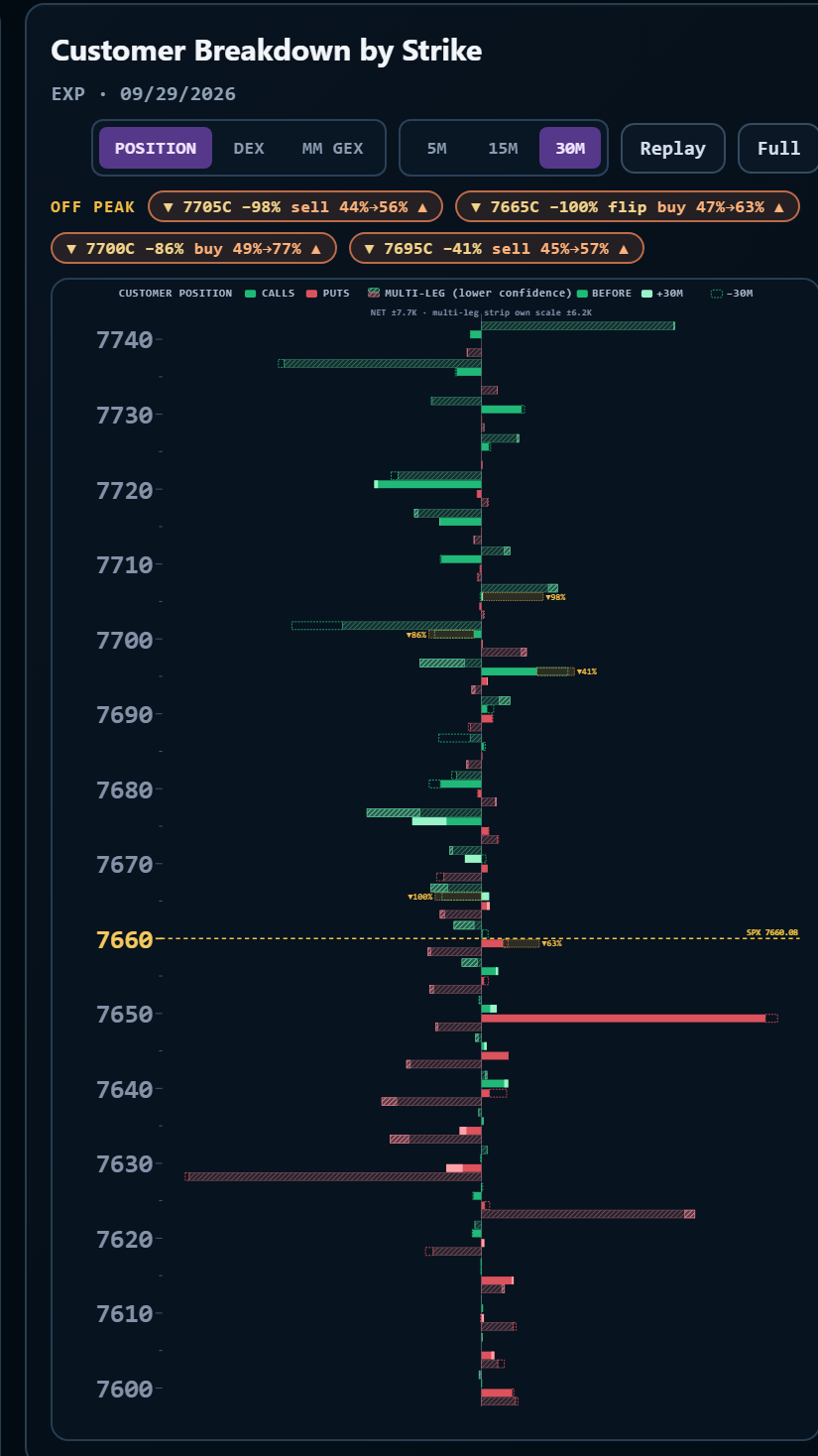
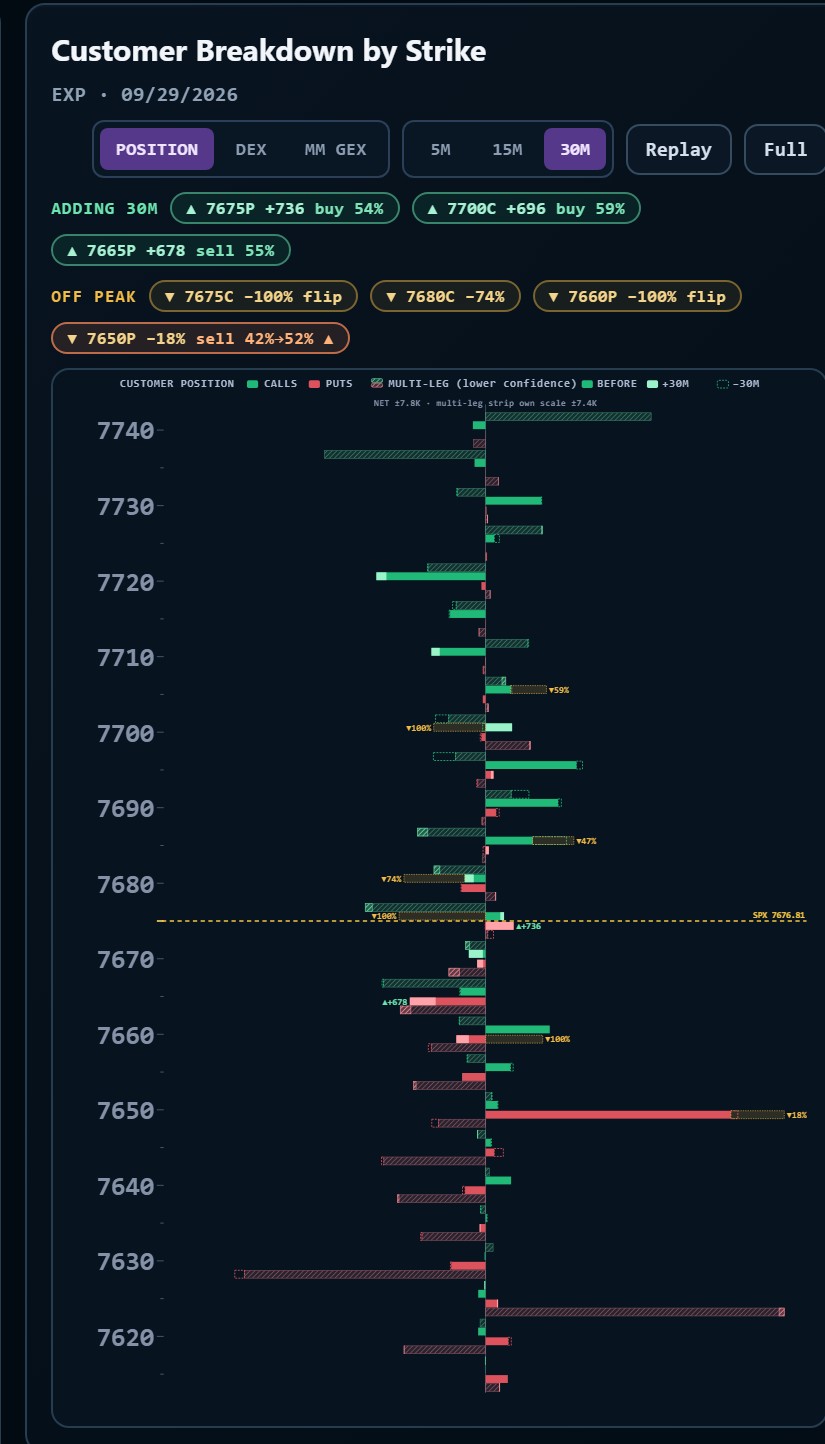
The chart also marks strikes where customers added to a position. The window is the one that you select: 5M, 15M, or 30M.
- Added — how much the net position grew in the window. The growth counts only in the direction of the position now. A position that changed side counts its whole new size.
- Adding side — customers add to a net long position by buying. They add to a net short position by selling.
The green chips are above the OFF PEAK chips. They name the strikes that added the most contracts. The chart shows up to four chips.
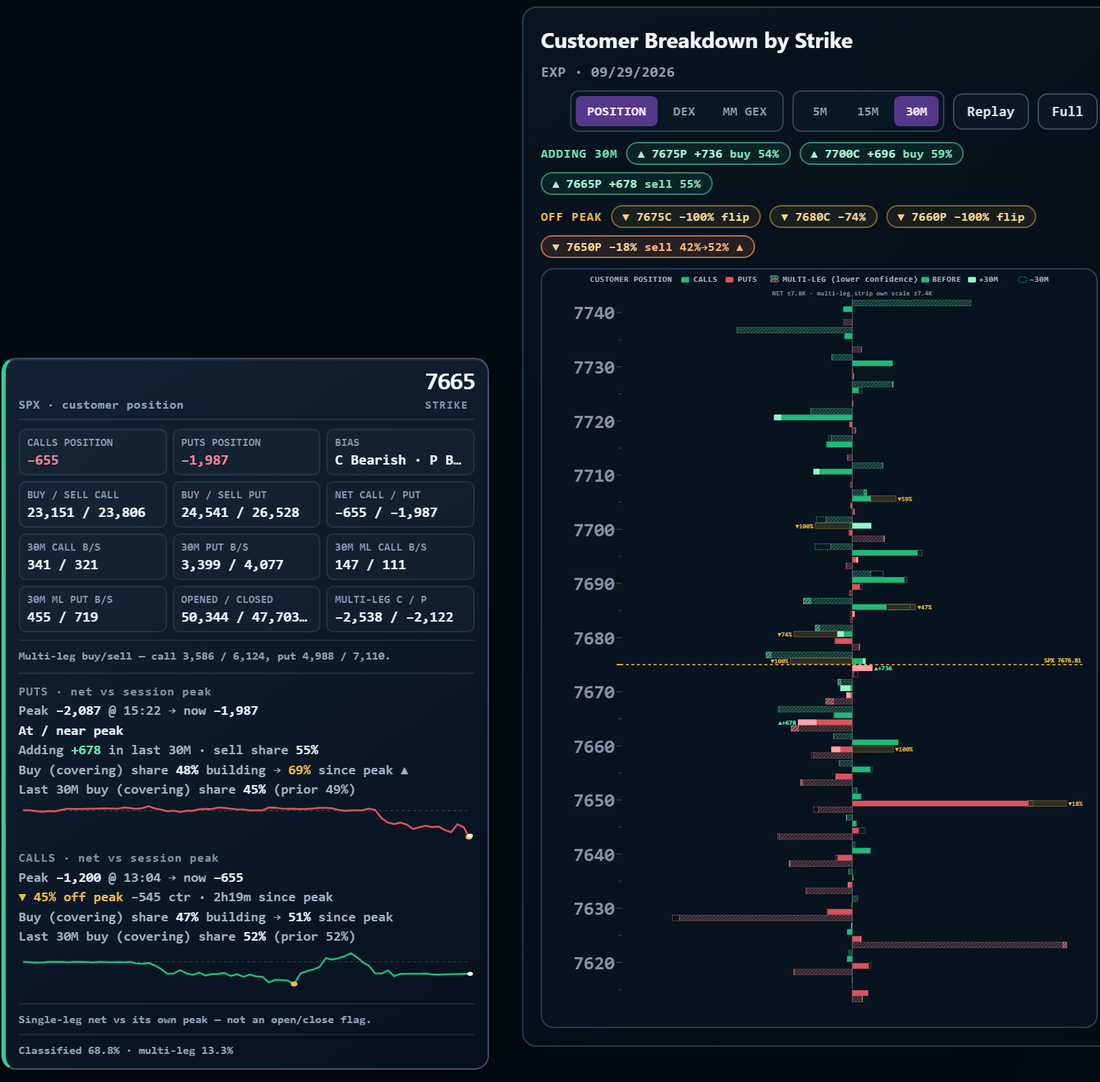
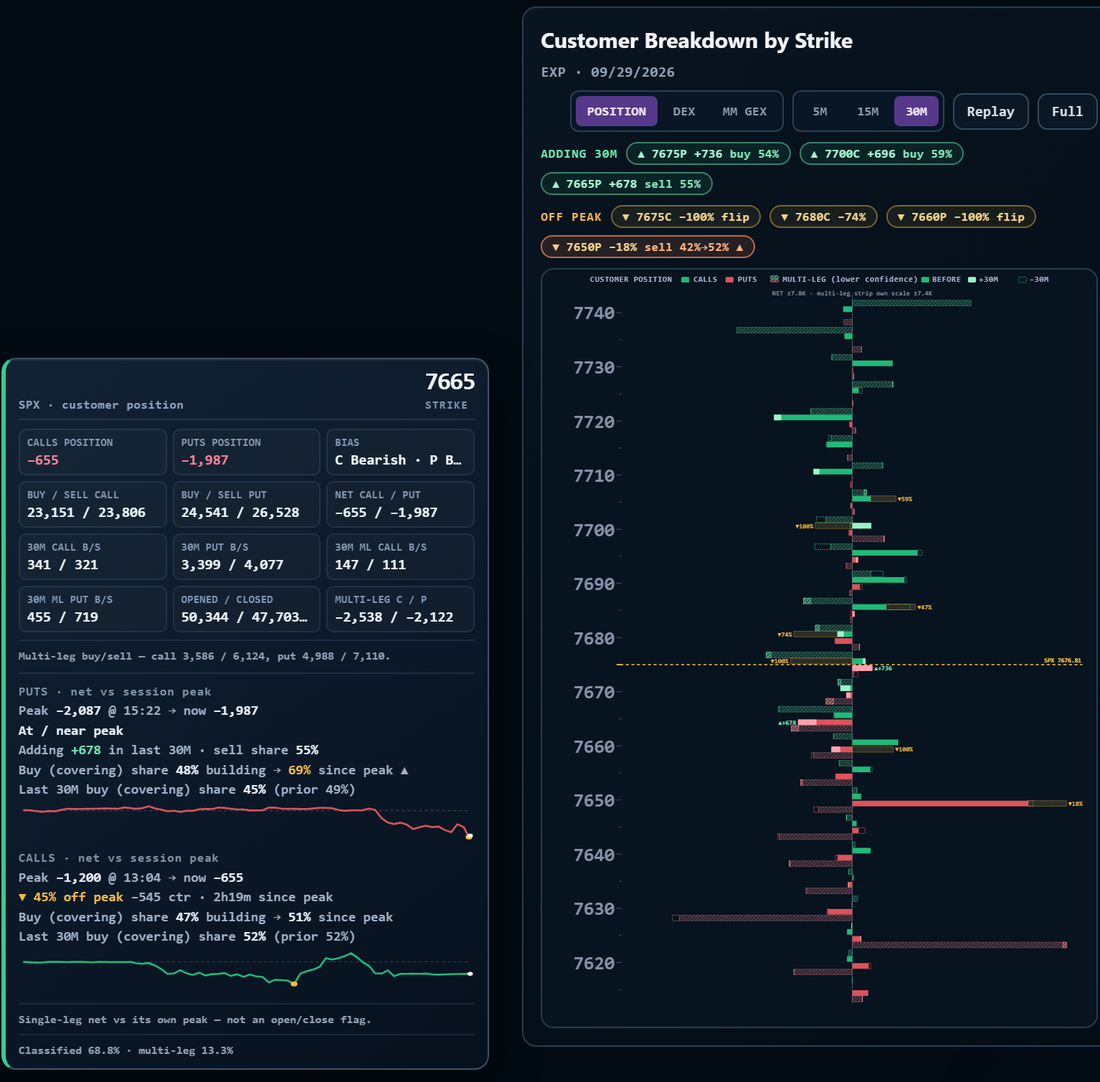
- ▲ 7675P +736 buy 54% — The net position at the 7675 put strike grew by 736 contracts in the window. The adding side (buy) is 54% of the volume in the window.
- ▲ 7665P +678 sell 55% — Here the position is net short. Customers add to a net short position by selling, so the chip shows the sell share.
- A chip with a brighter border means that the position is now at its peak for the day.
The label at the end of a bar, for example ▲+736, shows the contracts added in the window. A strike that has an amber OFF PEAK label on the same side shows only the amber label.
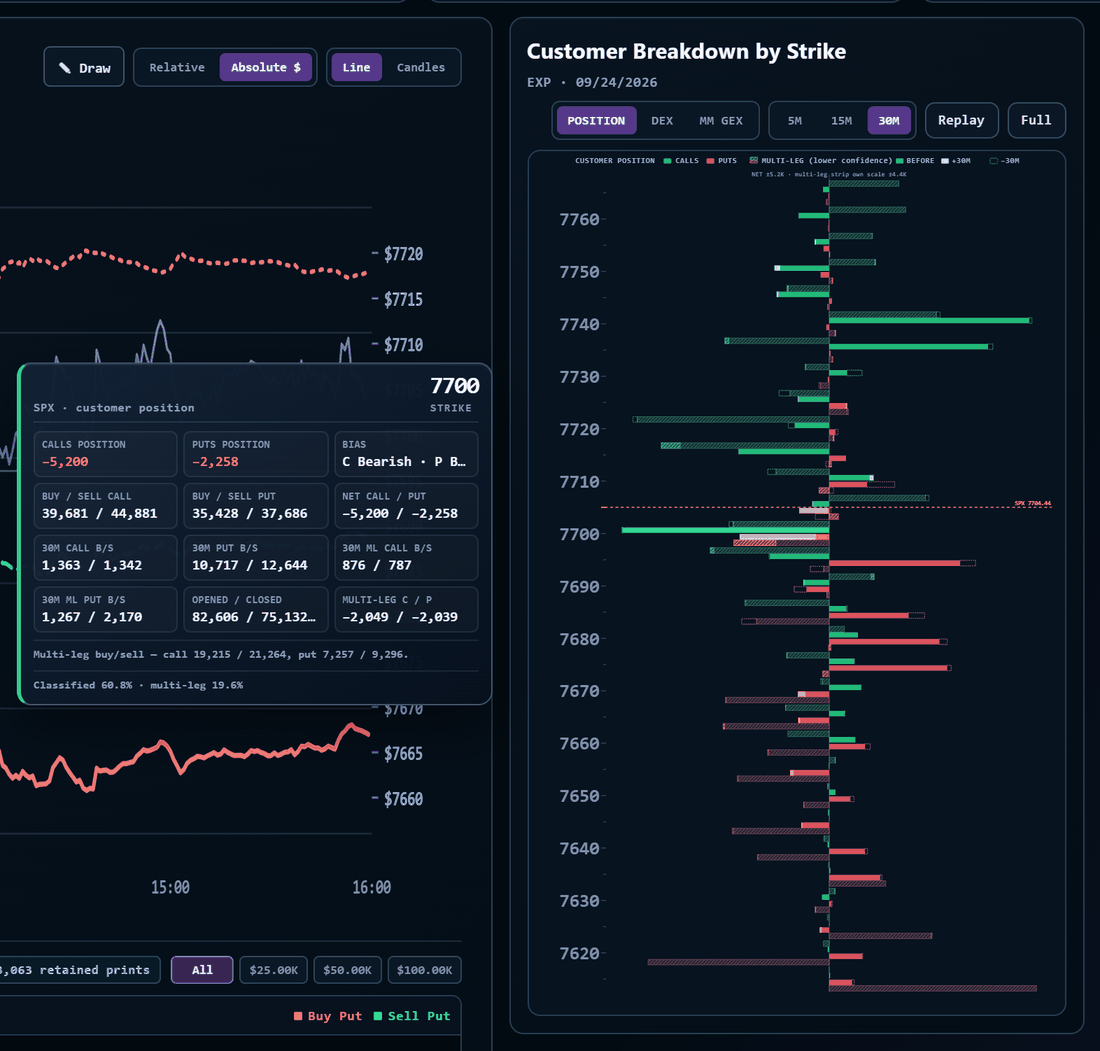
Hover a strike to open its detail card beside the chart:
- Calls / Puts Position — single-leg net position at this strike.
- Bias — net long calls read bullish; net long puts read bearish.
- Buy / Sell — contracts bought and sold since the open.
- 30M Call B/S, 30M ML Call B/S and the put equivalents — contracts bought and sold within the selected window, single-leg and multi-leg (ML) separately.
- Opened / Closed — estimated opening and closing volume.
- Multi-Leg C / P — multi-leg net position.
- Classified % — the share of volume with a known direction. Higher means more reliable.
Hover a strike to open its detail card. Each side (calls or puts) with a peak of at least 300 contracts has its own block at the bottom of the card:
- Peak … @ time → now … — the peak net position, the time of the peak, and the net position now.
- Off peak — the percentage and the number of contracts given back, and the time since the peak.
- Adding +678 in last 30M · sell share 55% — the contracts added in the selected window, and the share of the adding side. The card shows this line only when the position grew. It adds at session peak when the position is at its peak.
- Sell share 44% building → 56% since peak — the share of the volume on the reducing side. The first value is for the time when the position grew. The second value is for the time after the peak. Sells reduce a net long position. Buys reduce a net short position, and the card shows Buy share instead. A ▲ marks a rise of 10 points or more.
- Last 30M sell share 45% (prior 65%) — the same share for the last 30 minutes and for the 30 minutes before. A ▲ marks a rise of 15 points or more.
- A line graph of the net position through the day. The amber dot marks the peak. The white dot marks now. The graph is hidden on short screens.
- This is not an open or close flag. The off-peak values use the net position only. They do not use the estimated Opened / Closed values. A position that is given back does not prove that a trader closed a trade.
- Late in the day, most strikes sit below their peak. To keep the chart clear, it marks only large give-backs. A strike must meet four rules. Its peak must be at least 300 contracts. It must give back at least 15% of its own peak. It must give back at least 100 contracts. It must give back at least 12% of the largest position on the screen.
- The chips, outlines, and labels use single-leg net positions, the same as the solid bars. Multi-leg (hatched) bars are not included.
- The ADDING chips follow the selected window (5M, 15M, or 30M). A strike must add at least 100 contracts in 30 minutes. Its net position must be at least 200 contracts. It must add at least 8% of the largest position on the screen. For a shorter window, these limits are smaller in proportion.
- The chips and outlines show in the POSITION view only. They are hidden in the DEX and MM GEX views. In Replay, the chips are hidden. The outlines and labels on the bars still update as you move through the session.
- POSITION shows contracts (default). DEX shows the customers' delta exposure. MM GEX shows the market makers' gamma exposure.
- Replay steps through the session minute by minute. Full opens the chart full screen.
- The Top 3 Net Position panel lists the largest net positions; its values include single-leg and multi-leg bars, and its Δ follows the selected window.
- A spread often appears as two strikes with opposite bars, for example calls net short at 7700 and net long at 7705: a call credit spread that caps upside at those strikes.
Important: buy and sell direction is inferred from trade prices, not from actual order records, and some trades cannot be classified. "Customers" is the sum of all non-market-maker traders; individual firms cannot be identified. The chart describes market structure and is not a trading recommendation.
PRO RESEARCH
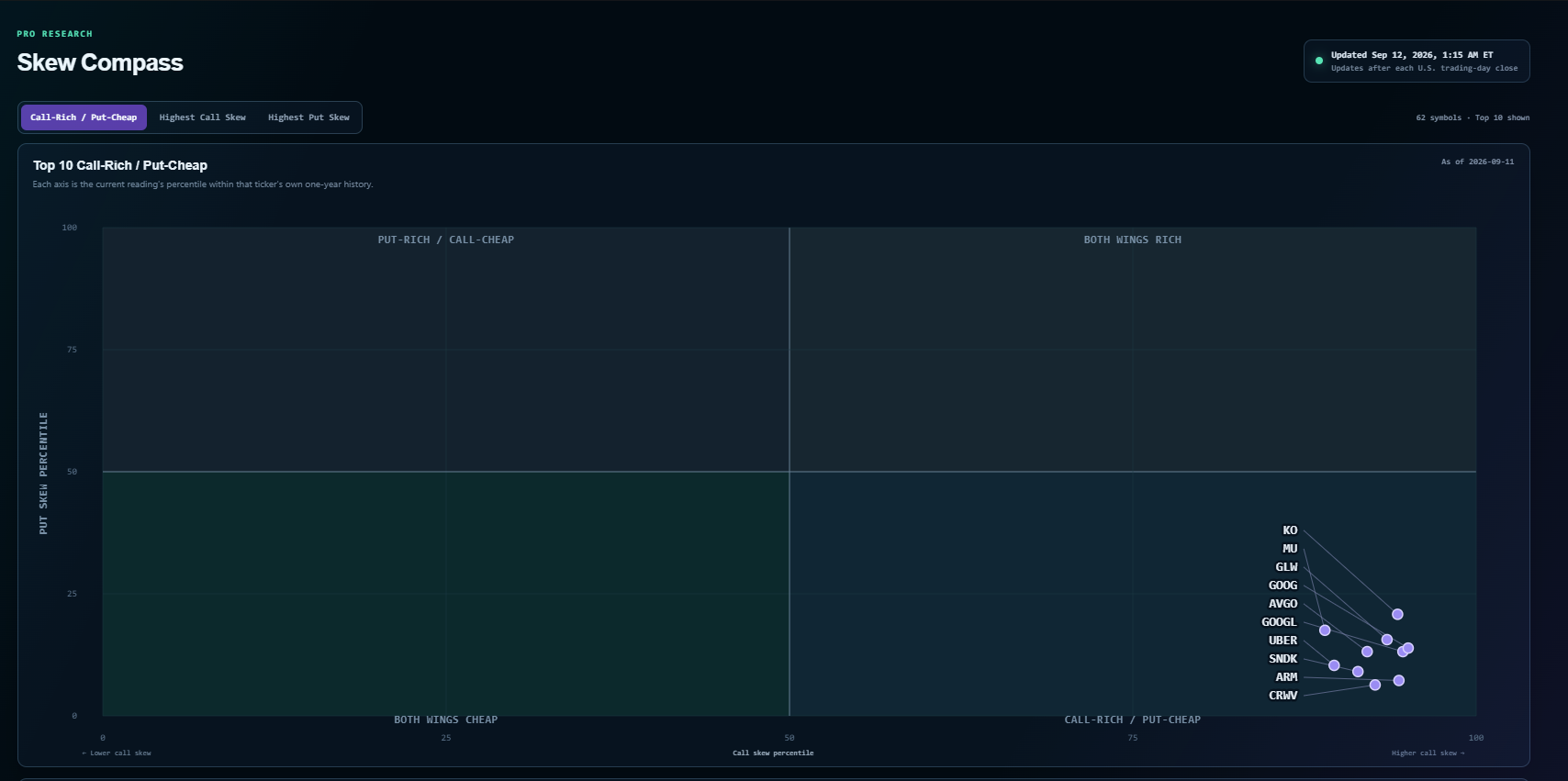
Skew Compass
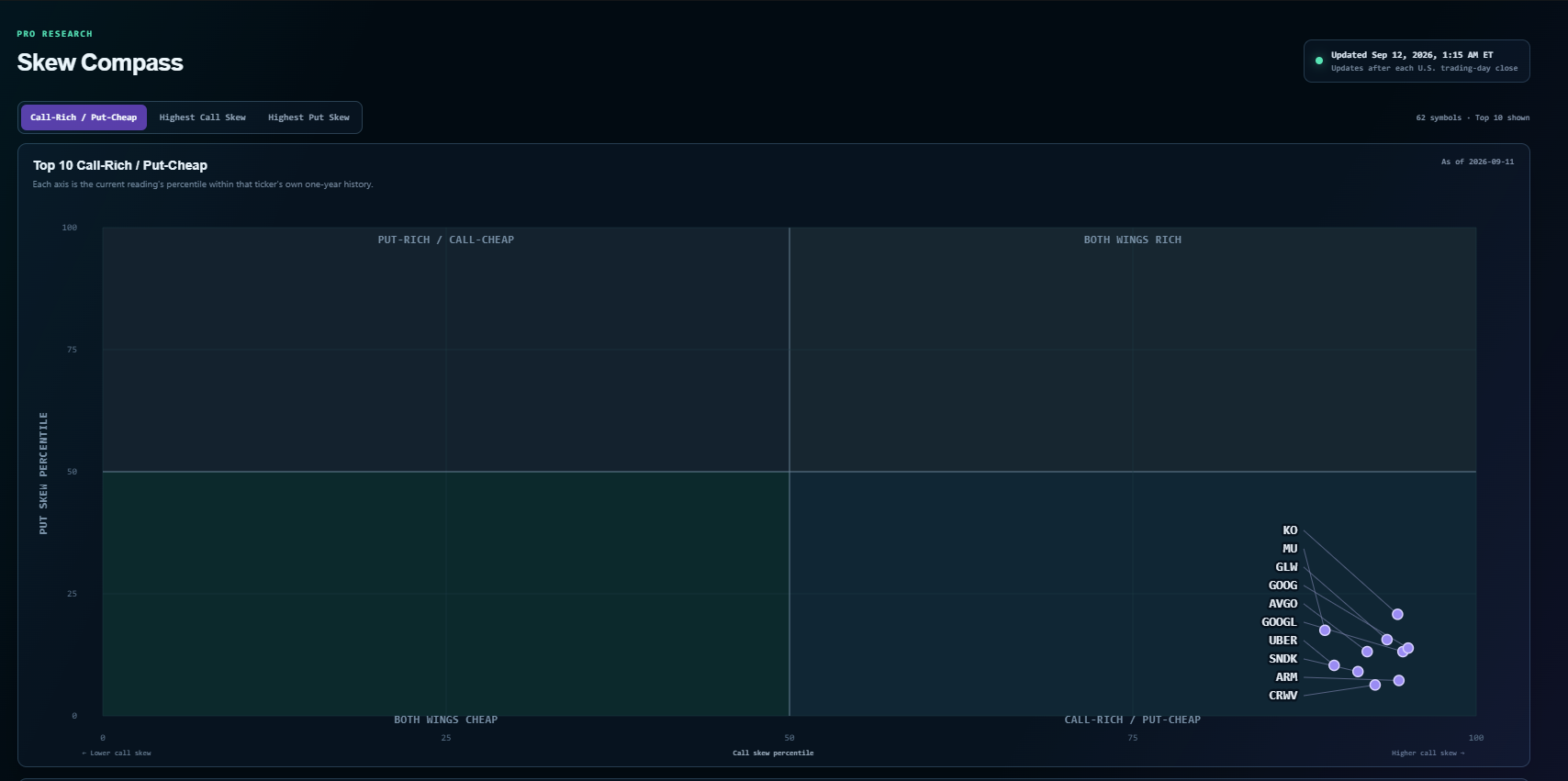
Skew Compass compares 3-month call skew and put skew across the supported symbol universe, then ranks each reading against that symbol's own one-year history. It is designed to show where upside or downside option demand is unusually rich or cheap relative to that ticker's normal range.
- Call Skew is the 90-day constant-maturity 25-delta call implied volatility divided by call ATM implied volatility. Put Skew uses the corresponding 25-delta put and put ATM implied volatility.
- The horizontal axis is the current call-skew percentile within that ticker's own recent history. The vertical axis is the current put-skew percentile within that ticker's own recent history.
- Call-Rich / Put-Cheap highlights symbols where call skew is high and put skew is low relative to their own histories. A point farther toward the bottom-right has a stronger call-rich / put-cheap separation.
- Highest Call Skew ranks tickers with unusually elevated call skew. Highest Put Skew ranks tickers with unusually elevated put skew.
- History badges such as 230D or 100D mean that the symbol has fewer than a full 252-session history window, so the percentile is based on the available valid sessions.
Practical workflow: use Skew Compass as a relative-pricing screen, not as a directional signal. A call-rich reading can reflect demand for upside exposure, hedging, event risk, low put demand, or option-surface distortion. Confirm the setup with trend, catalysts, liquidity, GEX structure, and your own risk rules before drawing a conclusion.
ORDER-FLOW CONTEXT
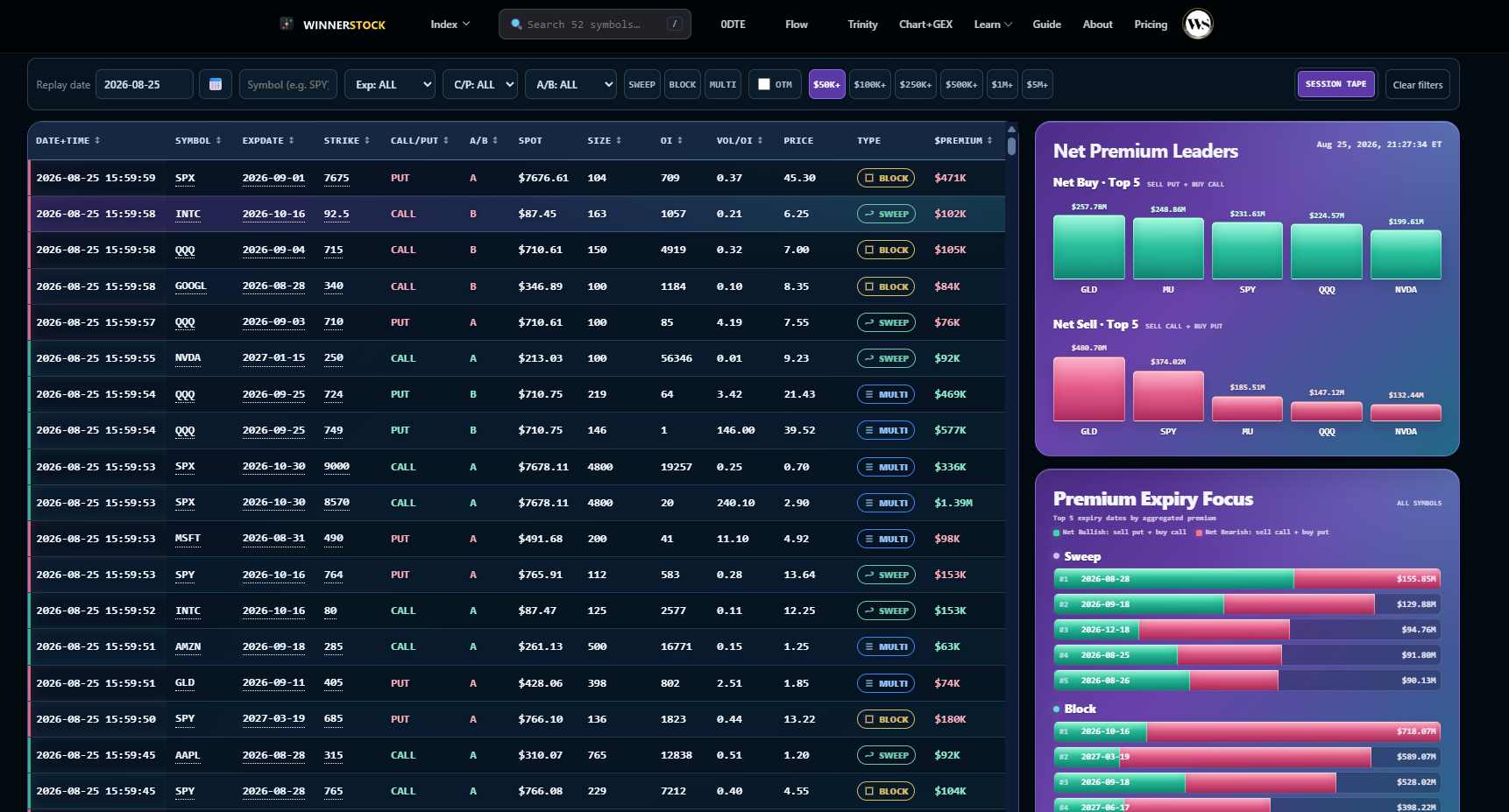
Unusual Options Flow
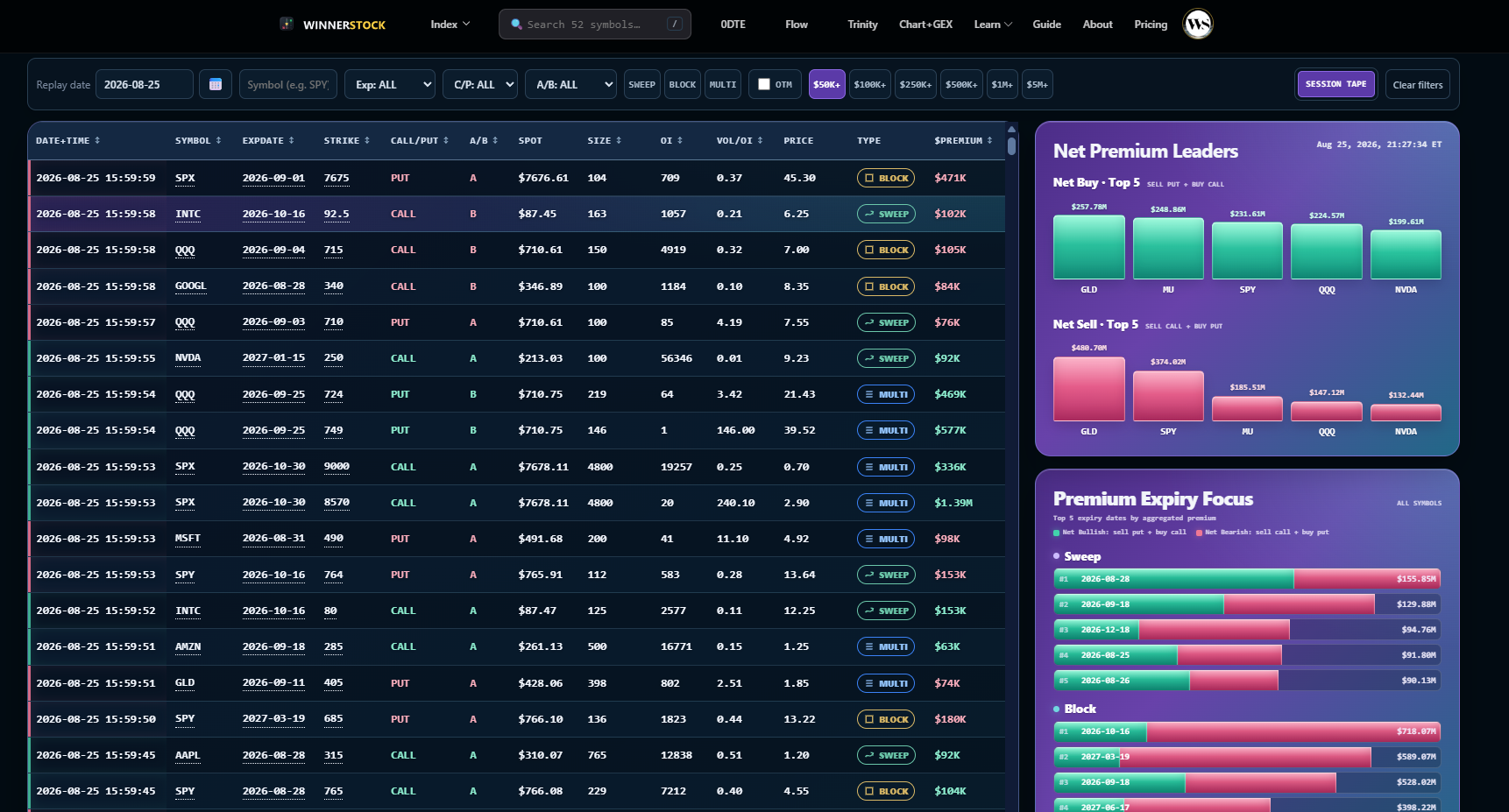
Unusual Options Flow refers to unusually large or aggressive options trades that may indicate activity from institutions or large traders.
It typically focuses on signals such as high volume, large premium, sweeps, blocks, repeated hits, and trades executed near the bid or ask.
For example, if a Call option normally trades only a few hundred contracts but suddenly sees thousands of contracts aggressively bought near the ask, it may be flagged as Unusual Call Flow.
However, unusual flow does not always mean bullish or bearish. Large trades may also be hedges, spreads, closing positions, or part of a larger strategy, so they are best analyzed together with GEX, Open Interest, price action, expiration, and dealer positioning.
IMPORTANT
Data, timing, and risk
WINNERSTOCK provides derived market-structure analytics for education and research. It is not a brokerage platform, a raw options feed, financial advice, or a recommendation to trade.
Check freshnessConfirm the visible timestamp and market/session state before relying on any view.
Levels can moveSpot, expiration, volatility, open interest, and market events can change the structure quickly.
Use your own risk rulesCombine these views with independent research, liquidity awareness, and risk management.